
Automate report generation based on events that occur within The Chip Lab. Conditionally send reports by evaluating any number of data points (individual or aggregate). Determine which report type you would like to trigger by using the drop-down menu at the top of the page, then press the Add Trigger button.
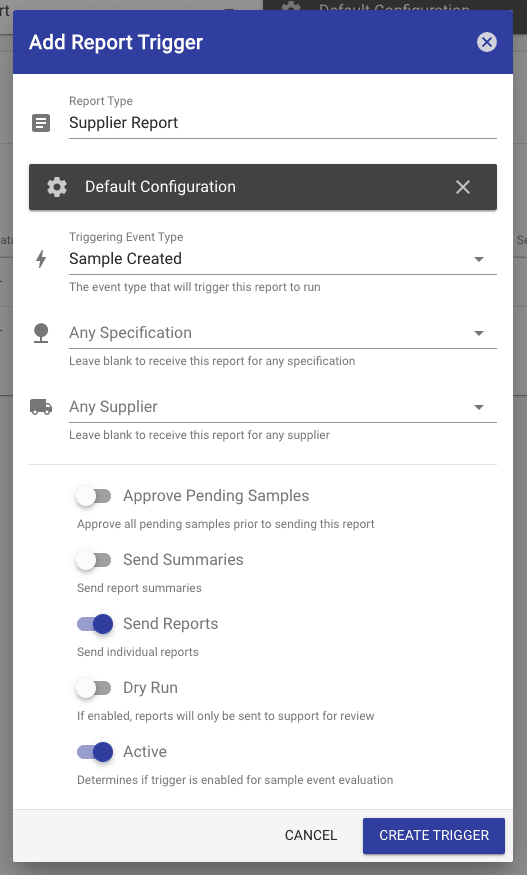
Report Type -(Required)The type of report that will be generated and sent if the configured conditions are met
Configuration - (Optional) For most report types a configuration will be optional. If a standard report-type is selected, you may clear this field and it will select the report's default configuration automatically. However, for custom reports, you may be forced to select a custom configuration. Custom configurations are currently generated by request.
Triggering Event Type -(Required) The event that will trigger a report to run. Depending on the configuration selected, data may be evaluated to determine if a report is in-fact generated and sent to anyone.
Specification / Species - (Optional) Determines whether or not to trigger an event based on a specific specification (species). Leaving this value empty is the same as allowing any specification to generate the report.
Supplier - (Optional) Determines whether or not to trigger an event based on a specific supplier. Leaving this value empty is the same as allowing any supplier to generate the report.
Approve Pending Samples - Determines if the trigger will automatically approve all samples that are on hold prior to running the report.
Send Summaries - Determines whether or not to send summary reports (if applicable).
Send Reports - Determines whether to send individual reports.
Dry Run - Determines if the trigger is in an evaluation mode. Note: All generated reports (including summaries) will be sent to support for evaluation.
Active - Determines whether or not the trigger is actively evaluating data. If disabled, the trigger is essentially turned off.
Once you have configured your new trigger just press the Create Trigger button to save.
Thats it! Once you have an active report trigger in place, so long as you have recipients added for the same report-type, they will start automatically receiving reports when your trigger's conditions are met.