
Installing The Chip Lab on iOS Devices
The Chip Lab installs straight from Safari on an iPhone or iPad, with nothing to download from an app store. Once added, it has its own icon on your Home Screen and opens in its own window, like your other apps.
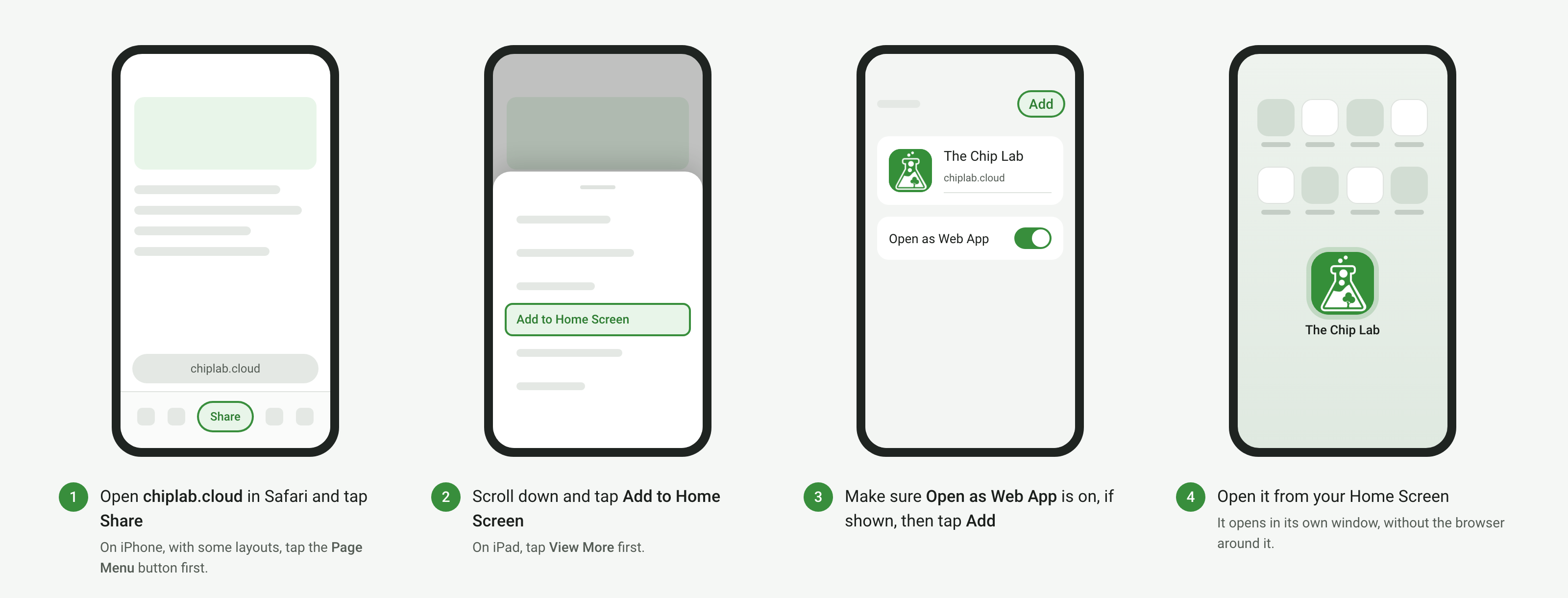
Add it to your Home Screen
- Open Safari and go to chiplab.cloud.
- Tap Share. On iPhone, with some Safari layouts, tap the Page Menu button first, then Share.
- Scroll down and tap Add to Home Screen. On iPad, tap View More first. On iPhone, if Add to Home Screen is not in the list, scroll to the bottom, tap Edit Actions and add it.
- Make sure Open as Web App is on, if shown, then tap Add. You can change the name first.
The Chip Lab icon appears on your Home Screen. It appears only on the device where you add it, so repeat these steps on each iPhone or iPad you use.
Using the installed app
- Open it by tapping The Chip Lab on your Home Screen. It opens in its own window, without Safari's address bar and tabs.
- Sign in. The app opens on The Chip Lab home page. Tap Sign In and use your usual email address and password, or tap Go To Dashboard if you are already signed in.
- Stay up to date. When a new version of The Chip Lab is ready, a card titled Update available! appears. Tap Update now to switch to the new version straight away. Tap Later to dismiss the card and keep working.
Removing it
Touch and hold the icon, choose the option to delete it, and confirm if prompted. Removing the icon leaves your account as it is: you can sign in from your browser, or add it again later.
On a computer
The Chip Lab installs on a computer too, including with Safari's Add to Dock on a Mac. The steps for each browser are in Installing The Chip Lab on Android Devices, under On a computer.