Your account: sign-in, passwords, mills and display
A fiber-supply or quality person rarely works for one mill only. A regional manager looks after several, a shift lead checks in from home at night, and almost everybody forgets a password now and then. The parts of The Chip Lab that belong to you, and not to your mill, are built to keep those moments short: getting in, getting back in, and getting to the right mill.
Signing in
The sign-in screen asks for your Email Address and Password. Tick Remember Me to stay signed in on a computer you trust. A switch in the corner chooses a light or dark screen before you have even signed in.
Forgotten and reset passwords
Forgot Your Password? opens Reset password: enter your address and press Send Password Reset Link. The screen then says that if an account exists for that address, a reset link is on its way. It gives the same answer for any e-mail address you enter, so the screen does not confirm who has an account.
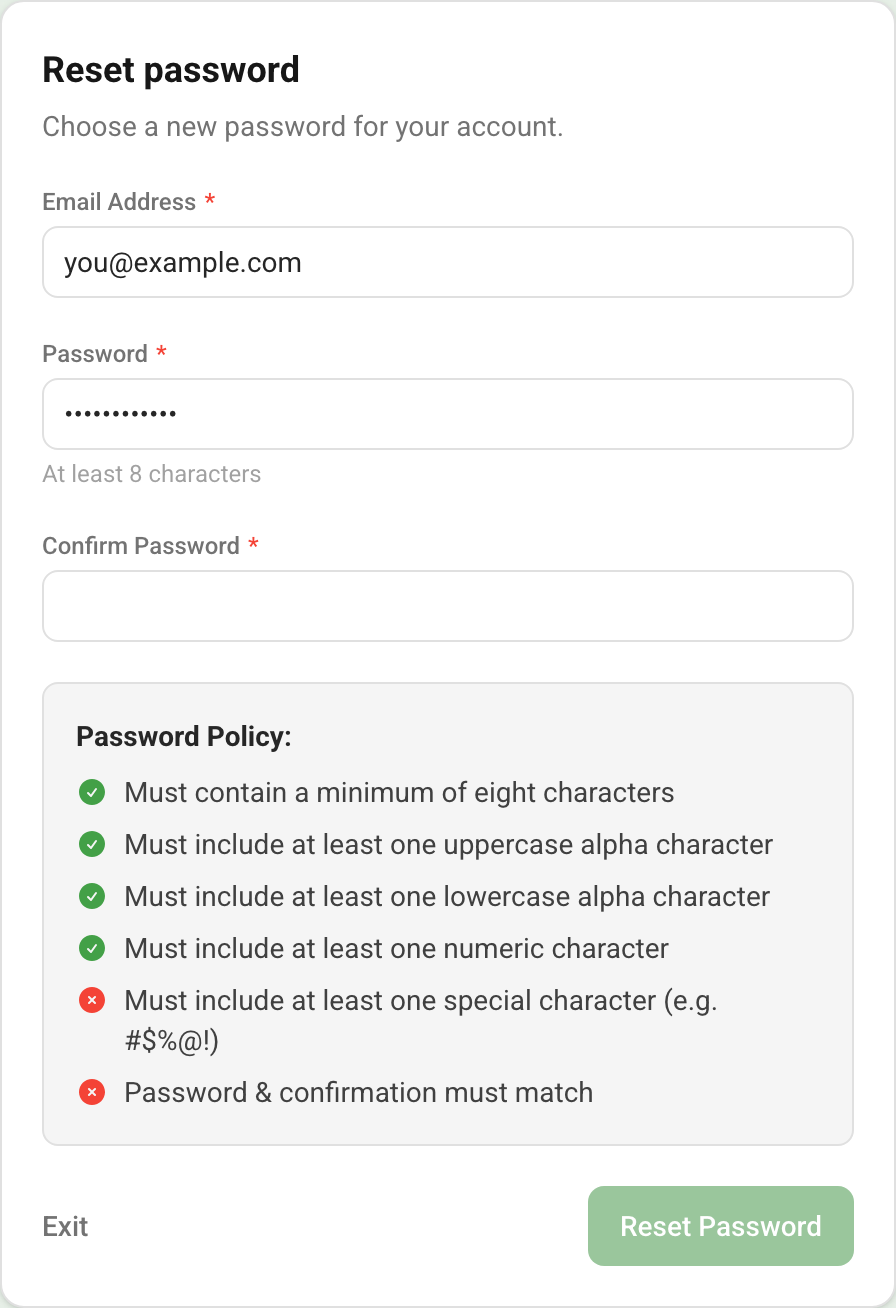
The link in the e-mail opens a Reset password page. Type your address and the new password twice, and the Password Policy box underneath checks each rule as you type: a green tick for a rule that is met, a red cross for one that is not. The Reset Password button enables when the live checks pass, and the new password is saved once every check passes. If a reset link no longer works, ask for a fresh one from Forgot Your Password?.
A reminder before a password expires
Where the password policy on your account sets an expiry, the platform e-mails you ahead of the date with an ACTION REQUIRED subject, how soon it expires, and a Reset Password button that opens the page to request a reset link. Changing your password before the date means the expiry does not interrupt your sign-in.
The top bar
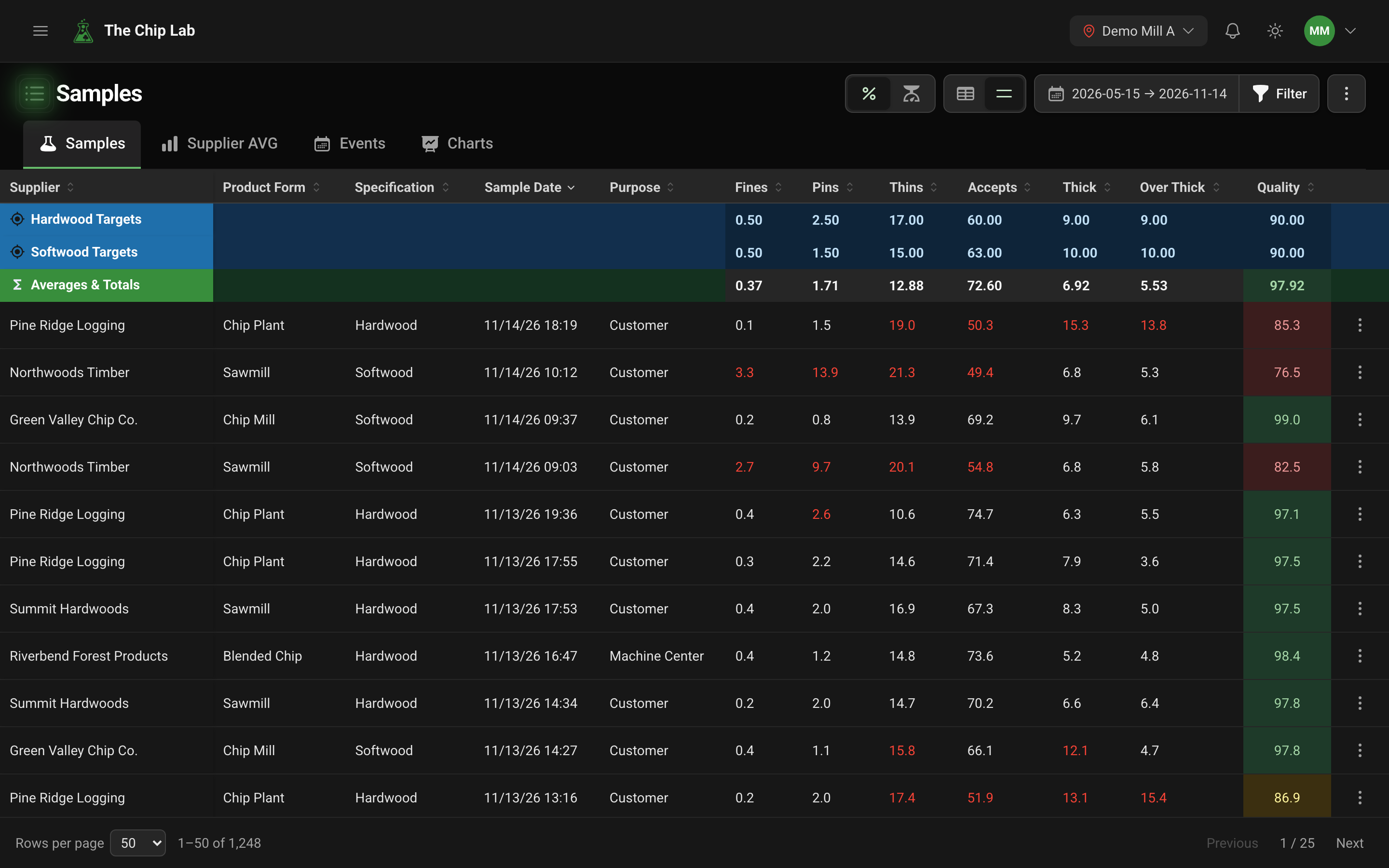
Everything about your own session sits at the right-hand end of the top bar.
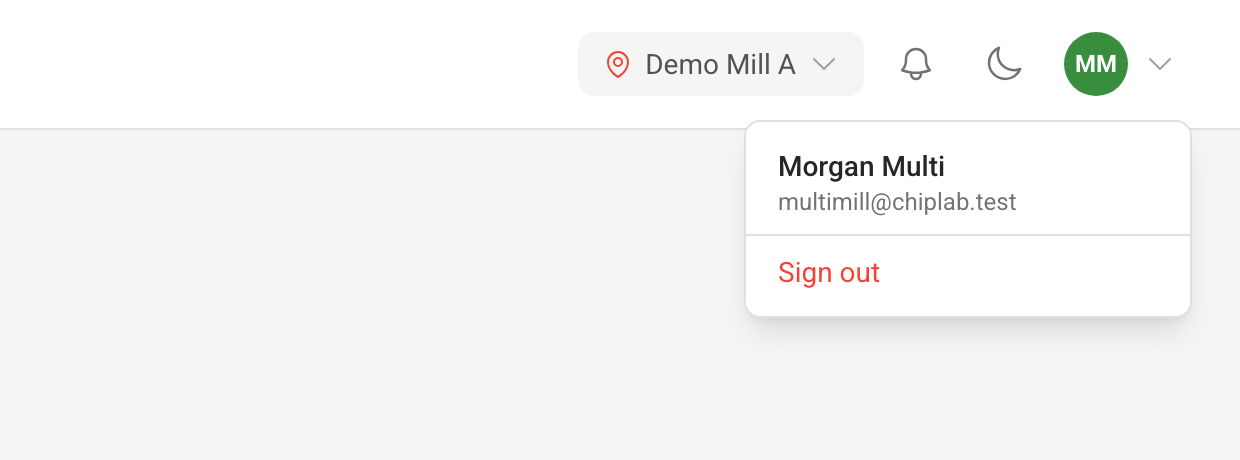
- The mill chip sets which mill's data you are working with. On a phone the mill is in the account menu instead.
- The bell shows a red count when you have unread notifications.
- The moon or sun switches between light and dark.
- Your initials open a menu with your name, your address and Sign out.
Working across several mills
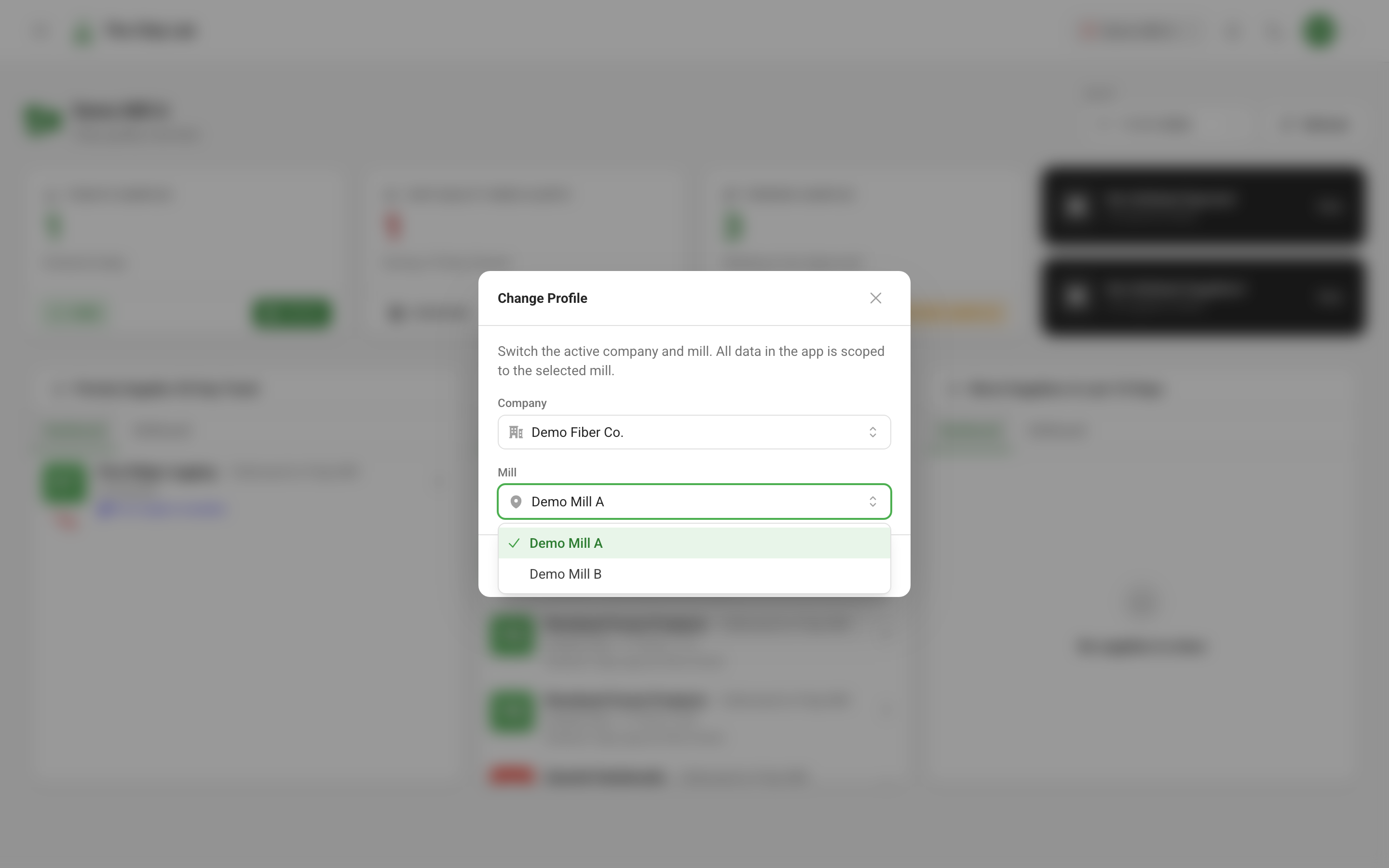
If you belong to more than one mill, click the mill chip (on a phone it is Change profile in the account menu). Change Profile offers a Company list, then a Mill list for that company. Both list only the companies and mills your account belongs to. Pick one and press Open Selected Profile: the app reloads on that mill, with that mill's data and your access there. What you can do can differ between mills: someone may manage one mill and only view another.
The notification bell
The bell opens Notifications, with unread items highlighted. Each one has a subject, a short message, how long ago it arrived and, where it points somewhere, a link that takes you straight to the page it is about. Mark read marks one item as read, Mark all read marks them all, and the cross beside an item removes it. When the list is empty, the panel says Nothing to catch up on. What can put a notification there is covered in Alarms and notifications.
Light or dark
The display follows your device's light or dark setting until you choose one with the moon or sun switch. Your choice is kept in that browser, so a control-room screen can stay dark while your office computer stays light.
Who can use it
Everyone with an account. Sign-in, password reset, the bell and the display switch are the same for every person. Switching mills matters to people who belong to more than one. Who belongs to which mill, and at what level, is set by the people who manage users at your mill; see Users and permissions.
Read next
- Users and permissions — adding people and setting what they can do at each mill.
- Alarms and notifications — what can arrive in your bell and your inbox.
- Dashboards — the page you land on after signing in.