
Ask the supplier: let your suppliers complete their own profile
The facts a mill wants on file — who to call, how the yard is run, which chipper, whether there is a debarker on site — live with the supplier, and collecting them by phone is slow.
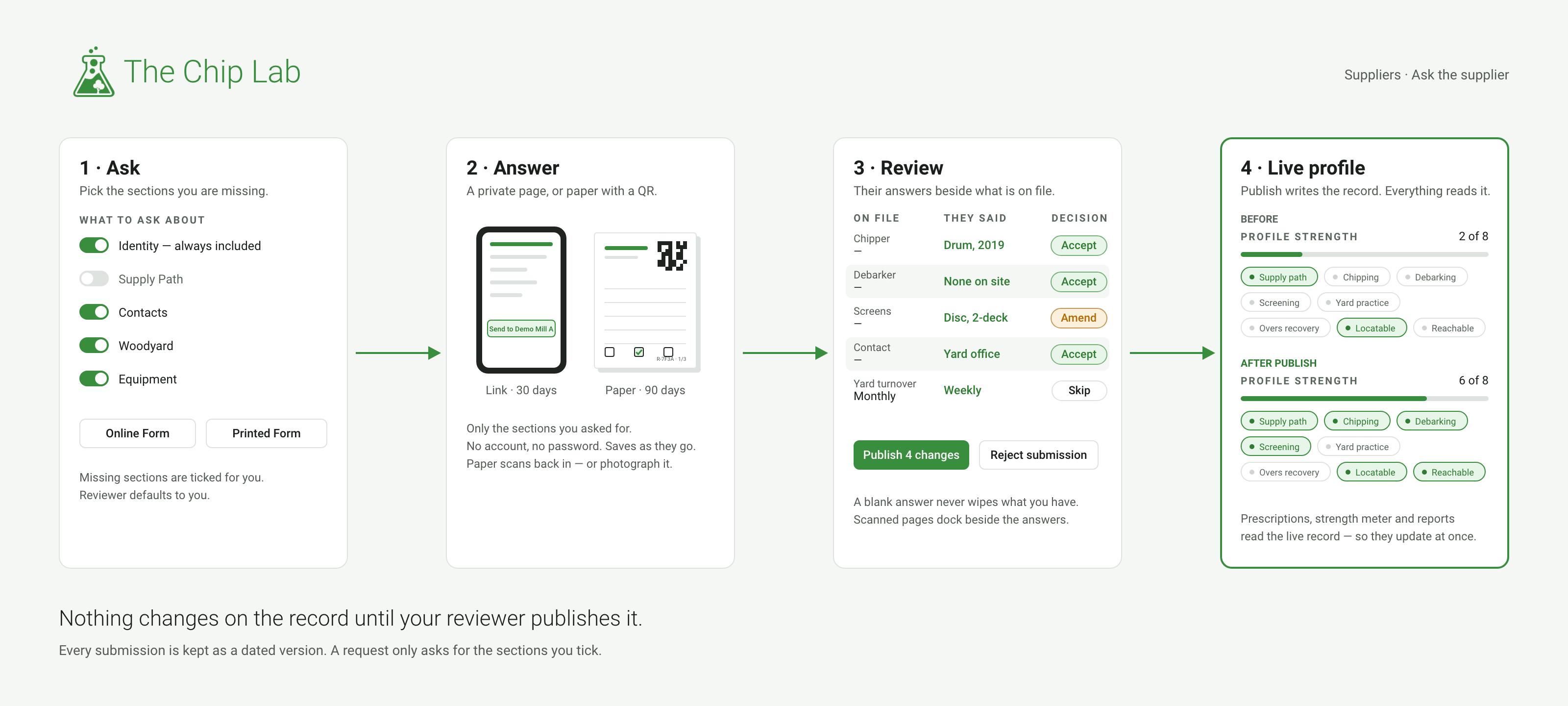
Ask the supplier turns the profile into a document the supplier fills in themselves. You choose which sections you want, send it as a link or on paper, and what comes back lands in a review queue at your mill. Nothing changes on the supplier's record until one of your reviewers publishes it.
Where to find it
Open any supplier and click Edit. In the left rail, below the Profile strength panel, the Ask the supplier card has a Send Request button; the supplier's Submissions tab offers the same as New request. Sending a request needs the Suppliers permission at Contributor or above. Reviewing and publishing what comes back needs it at Reviewer or above.
Sending a request
What to ask about. The document mirrors the supplier editor: Identity, Supply Path, Contacts, Woodyard and Equipment. The sections the strength meter shows as missing are ticked for you, so the default request asks for exactly what you do not know. A request only ever asks for the sections you tick: a supplier asked about Contacts is not shown the equipment page, and nothing they were not asked about can change.
What to send. An Online Form is a private page the supplier fills in online — email it to one of their contacts, or copy the link and send it yourself. A Printed Form is a PDF you can post, hand over at the gate or fax (the dialog can fax a contact who has a fax number); its QR code opens the same page online for a supplier who would rather type than write.
A link stays open for 30 days and a printed form for 90 unless your mill has set other defaults; you can choose up to 180 days and extend later.
What the supplier sees
A private page with your mill's name, the sections you asked for, and nothing else — no account and no password. It saves as they go, so a supplier can start at their desk and finish in the yard. They finish with a short sign-off and press Send to your mill.
The printed form has a "none on site" tick for a debarker, screens and a resizer, because we do not have one is an answer worth recording.
When something comes back
Every completed document becomes a submission on the supplier's Submissions tab, and the reviewer is notified. Open it and you see the supplier's answers beside what is on file, section by section, with unchanged lines folded away. For each proposed change you can Accept, Skip or Amend it. A blank answer never wipes what you already have: only an explicit clearance does, and clearances, along with anything that conflicts with a colleague's newer edit, wait for your decision.
If the document is wrong end to end, Reject it with a reason; you can prepare a fresh link over the same sections to pass on. Publish — the button reads "Publish N changes" — is the only step that changes the live record, and the strength meter picks up the new facts straight away. Every submission stays on the tab as a dated version, so you can always see what a supplier told you and when.
The paper round trip
When a printed form comes back, open the request and click Upload scan — PDF, JPEG or PNG, or Take a photo on a phone, one page at a time. Each page is checked for viruses and shows Scanning… while the check runs. The pages are then processed into a submission; until that is done the request shows Scan received, awaiting processing. Your reviewer opens the submission with the scanned pages docked beside the answers, corrects anything misread, and publishes.
Each printed page carries a small code tying it to the request, so pages from a different form are caught before anything is saved.
Good to know
- On the Submissions tab, each open request can be edited, extended or revoked; Copy link issues a fresh link and the old one stops working. The Suppliers page's Submissions button counts what is waiting at the mill.
- A request never asks for mill-only settings — priority, specification lock, classifier, boundary — and a supplier cannot see or change them.
- A proposed new name or address is shown to you as a proposal, never applied silently.
Read next
- Supplier management — the record the answers are published to.
- Supplier logins — a supplier with its own sign-in can keep its record current.