
Supplier management: every source of fiber in one place
Every load, every sample and every question about a chip pile comes back to a supplier. Yet the facts about suppliers are usually scattered: an address in purchasing, a phone number in someone's mobile, the chipper they run in the fiber manager's head.
Supplier Management keeps it on one record per supplier, beside the supplier's chip quality.
Where it lives
Suppliers in the sidebar opens Supplier Management for the mill you are working in. The Suppliers tab lists every supplier as a Grid — supply type, product form, species, and counts of references, woodyards, equipment, samples and events — or as a Map. Adding and editing suppliers needs edit access to suppliers.
The supplier record
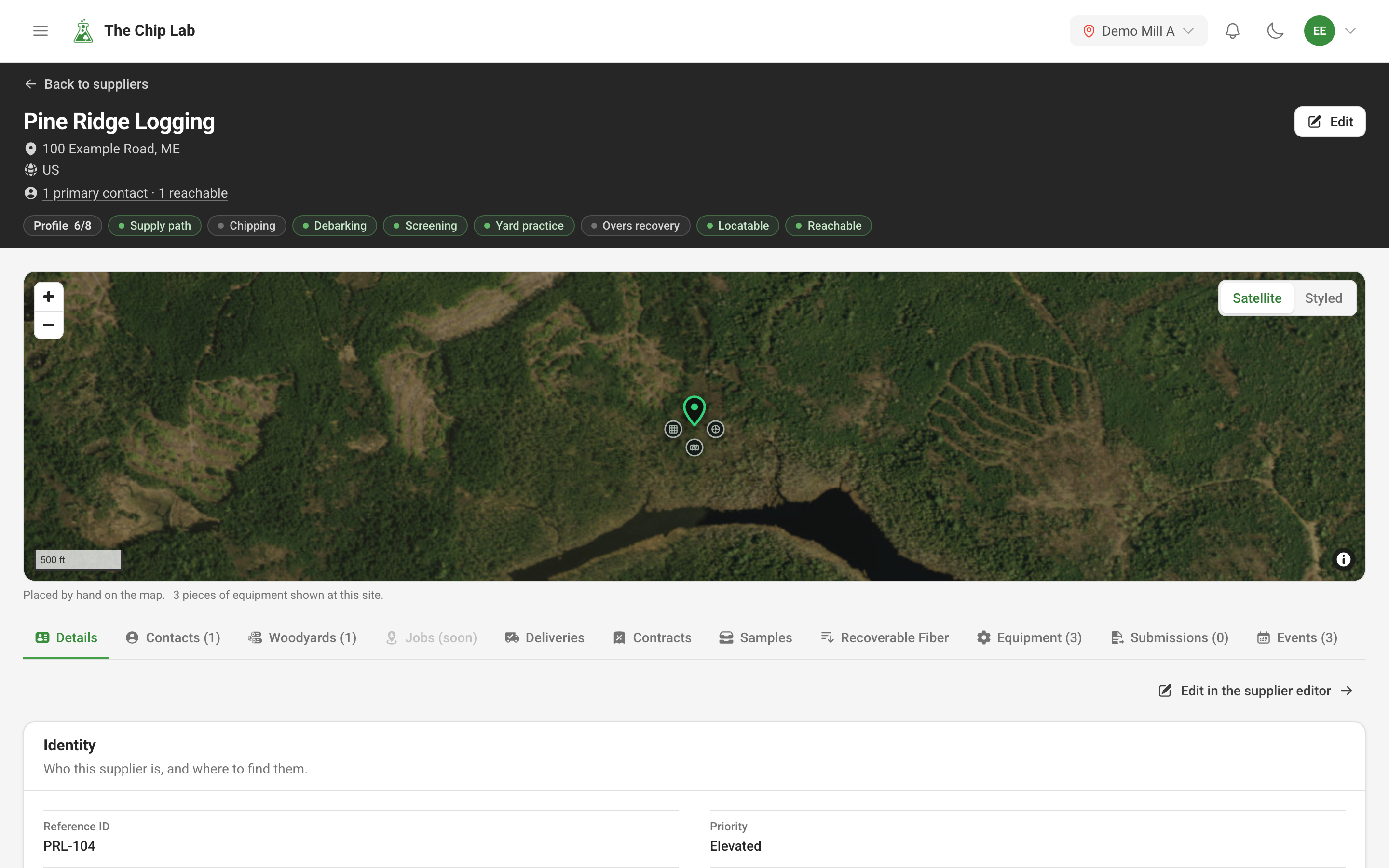
A supplier's page shows its address, how many primary contacts are on file and how many can actually be reached, a row of profile chips, and a satellite map of the site with the supplier's pin and equipment. Tabs below cover contacts, woodyards, samples, equipment, events, references and more; the Deliveries and Contracts tabs appear for people with the Financial Data permission. The Recoverable Fiber tab is a preview. Files can be attached to the supplier and to each piece of equipment; the upload window lists the kinds of file it takes, and each new file is checked for viruses.
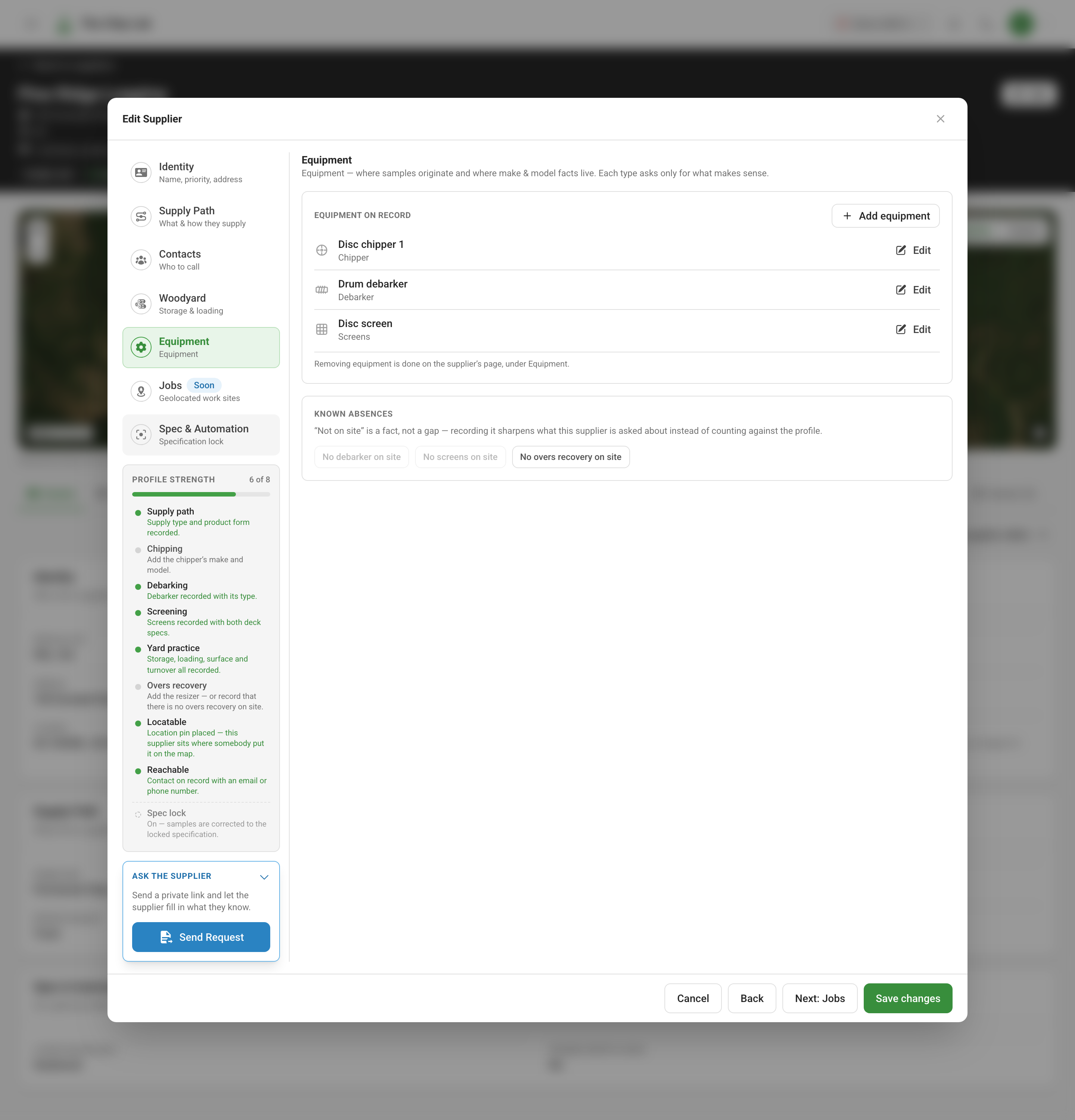
Edit opens the supplier editor, which walks the profile one step at a time, including:
- Identity — name, your own reference ID, priority, whether it is active, and the address. Verify address checks it against postal records; Set location on map lets you drop the pin yourself when the address is not precise enough, such as a yard down a logging road.
- Supply Path — own-make or purchased chips, the product form, and how the fiber arrives.
- Contacts — the people to call, with a primary marked.
- Woodyard — how logs and chips are stored and loaded, the yard surface, pile management and turnover. Storage and loading choices carry a contamination-risk badge.
- Equipment — chippers, debarkers, screens, resizers and the rest, each asking only for the details that make sense for that machine.
Profile strength
The Profile strength panel in the editor, and the chips on the record, score the profile against eight signals: supply path, chipping, debarking, screening, yard practice, overs recovery, locatable and reachable. Each unlit signal says what is missing — "Add the chipper's make and model" — and takes you to the step where it goes.
"Not on site" counts as an answer: the Equipment step's Known absences (No debarker on site, No screens on site, No overs recovery on site) light a signal just as recording the machine would. The meter measures whether the facts are on record, never how good the chips are.
When the facts live with the supplier, the editor's Ask the supplier card sends them a form to fill in themselves, and your mill reviews the answers before anything changes — see Ask the supplier.
The map
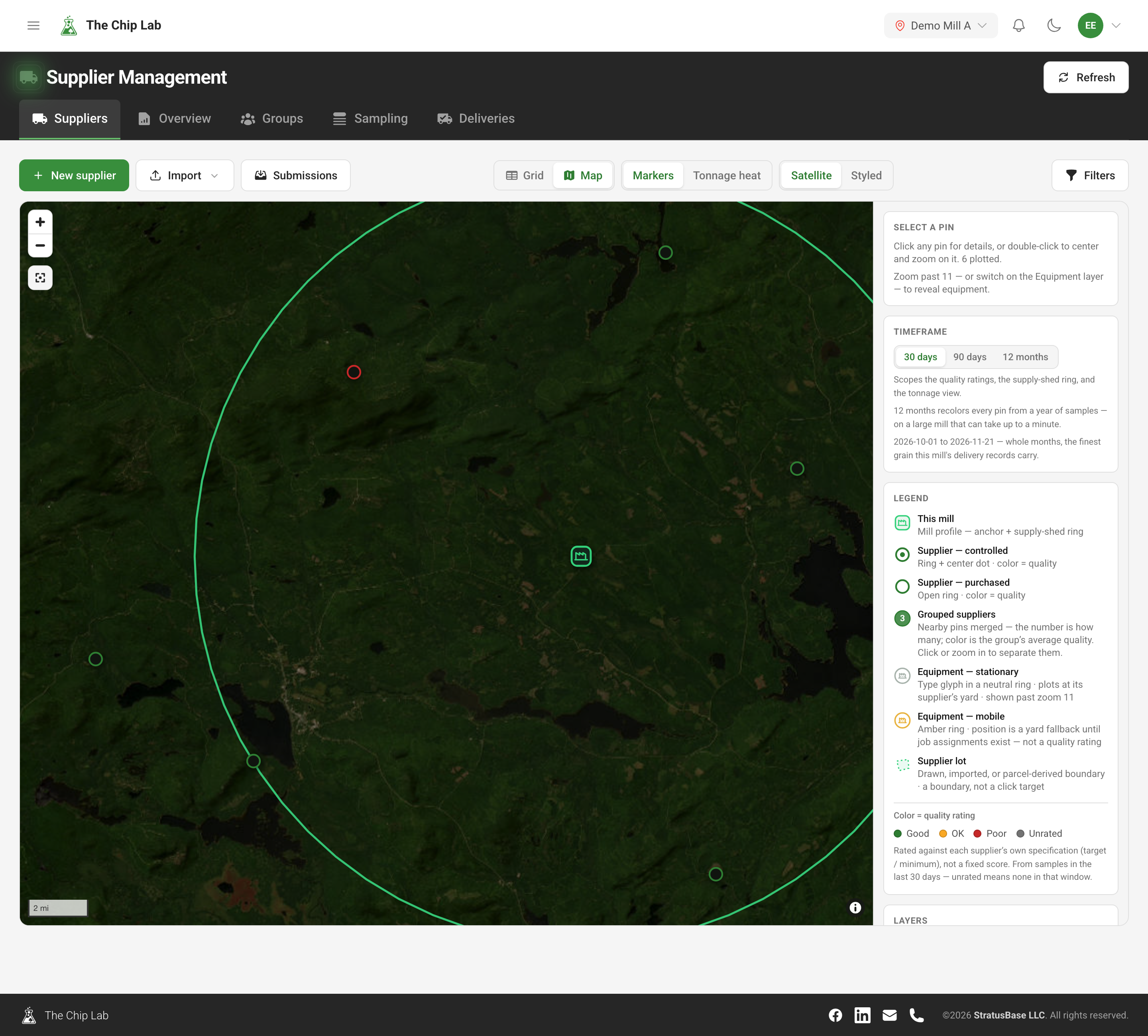
Switch to Map and every supplier with an address or a pin is plotted. Each pin is colored by the supplier's quality rating — Good, OK, Poor or Unrated — over the period you pick (the last 30 days, 90 days or 12 months), against the specification with the most samples in that period. Nearby pins merge into a count until you zoom in; zoom further and each supplier's equipment appears at its yard. Click a pin for a summary and Open supplier for the record. People with the Financial Data permission also get Tonnage heat, which shades the map by delivered tonnage and draws the supplier flows.
Overview and groups
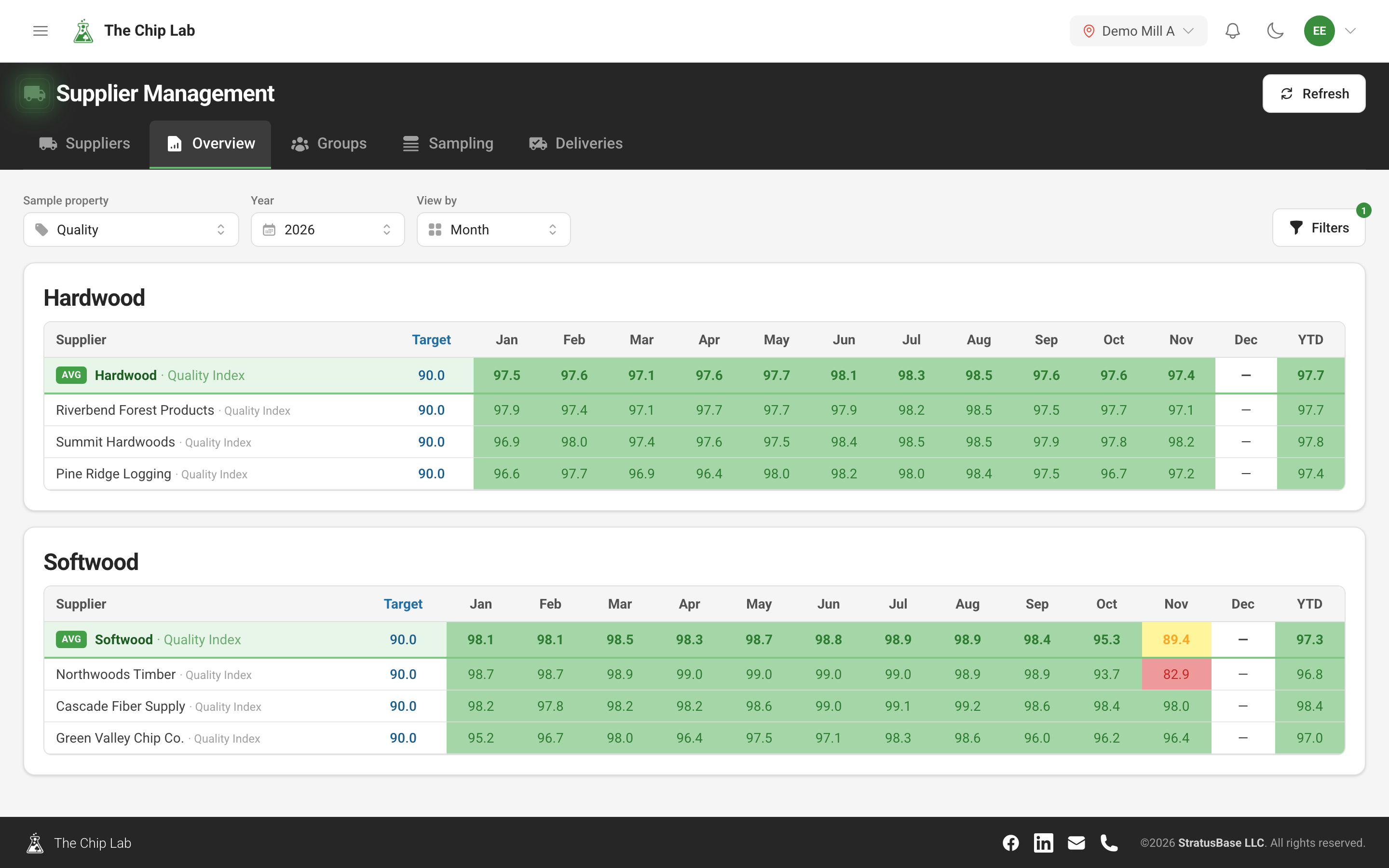
The Overview tab gives one card per specification, with a row per supplier, month by month, for the sample property you choose, against target and with a year-to-date column.
The Groups tab collects suppliers you review together — a region, a buying program, a set of company yards — and shows the group's combined figures beside each member's. Creating and changing groups needs mill-wide access as an account Owner or Admin, or the Suppliers permission at Contributor or above. If a group still holds a retired supplier, it says so and, where it can tell which supplier replaced it, offers to add the replacement.
Records are kept per mill, and retiring a supplier keeps its history while new samples stop arriving on it.
Delivery uploads
In Supplier Management, open Deliveries to see rows from the mill's uploaded delivery files. In Uploads and Unconverted → Rows, sort by Delivery period to see when the deliveries took place. Individual loads and daily totals show a date. Monthly totals show a month and year. A dash means the period could not be read.
Open Unconverted → Contract gaps to work through the backlog by vendor, contract, and product. Choose Assign contract when the rows need a contract. Staff can choose Process rows once a matching contract exists. This retries the rows across their source files and reports how many converted and why any are still waiting. Once the rows are queued, processing continues if you refresh or leave the page.
Read next
- Ask the supplier — let suppliers complete their own profile.
- Supplier sampling and data integrity — is every supplier sampled enough, and is every sample credited to the right one.
- Supplier groups
- Supplier logins — give a supplier its own sign-in.