Users and role-based permissions for your mill
Chip quality data is shared by a lot of people: the lab technician who enters samples, the fiber manager who reviews them, the buyer who looks after contracts, and the suppliers who want to see their own loads. They should not all see and change the same things. A supplier should see its own samples and nobody else's, and the person who enters samples is not always the person who approves them.
The Chip Lab sets access per person, per mill, and per area of the app. A mill manager decides who gets in and what each person can do, and the screen says in plain words what each choice means.
Where to find it
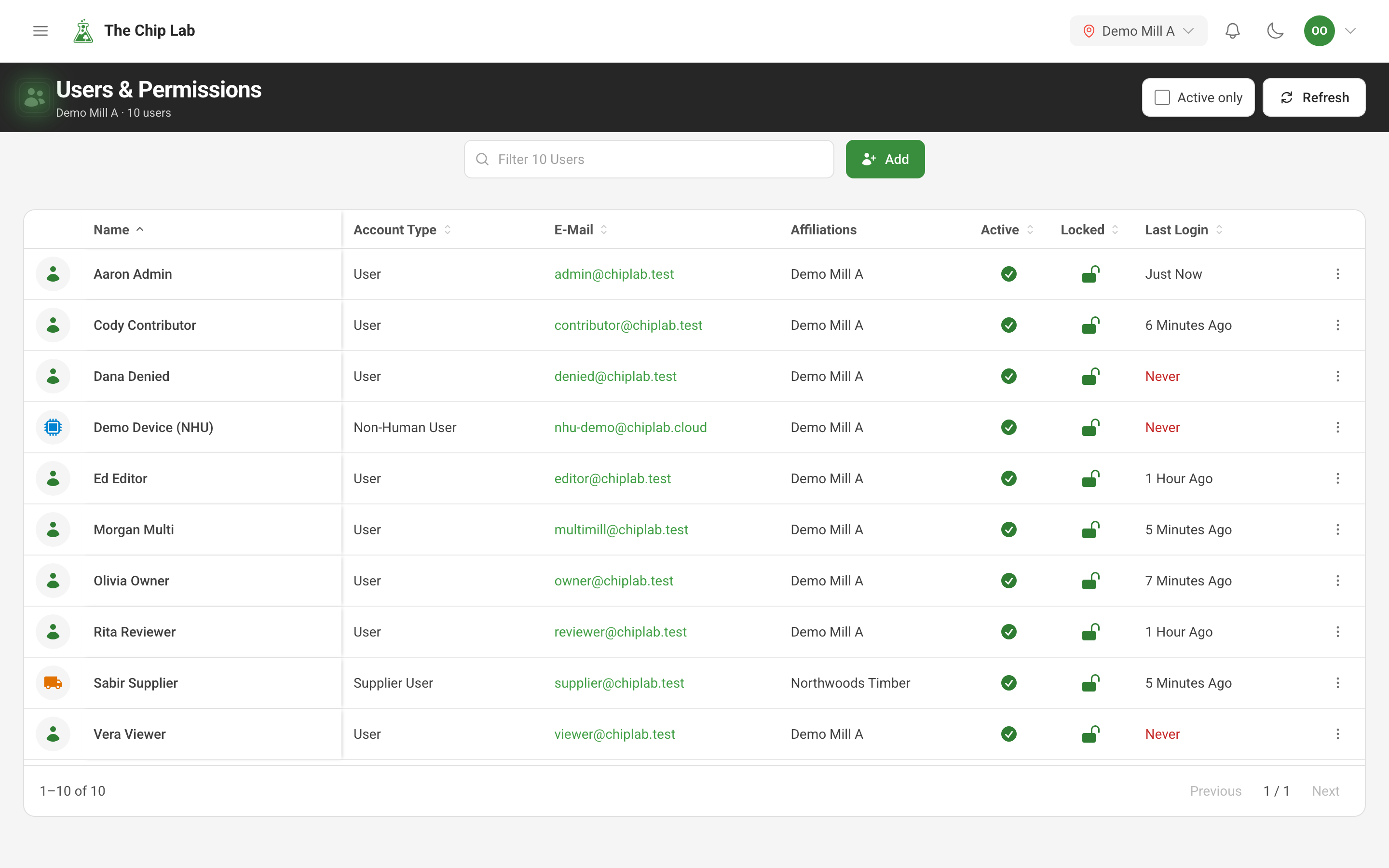
Users & Permissions, under Management in the sidebar, lists everyone with access at the mill selected in the header: their Account Type, E-Mail, Affiliations, whether they are Active or Locked, their Password Age and their Last Login. You can filter by name, or tick Active only to hide deactivated accounts.
Add opens the account form for a Standard User, or a Non-Human User for an automated connection to the platform. A new person can be sent a welcome e-mail with a temporary password to sign in.
Access, area by area
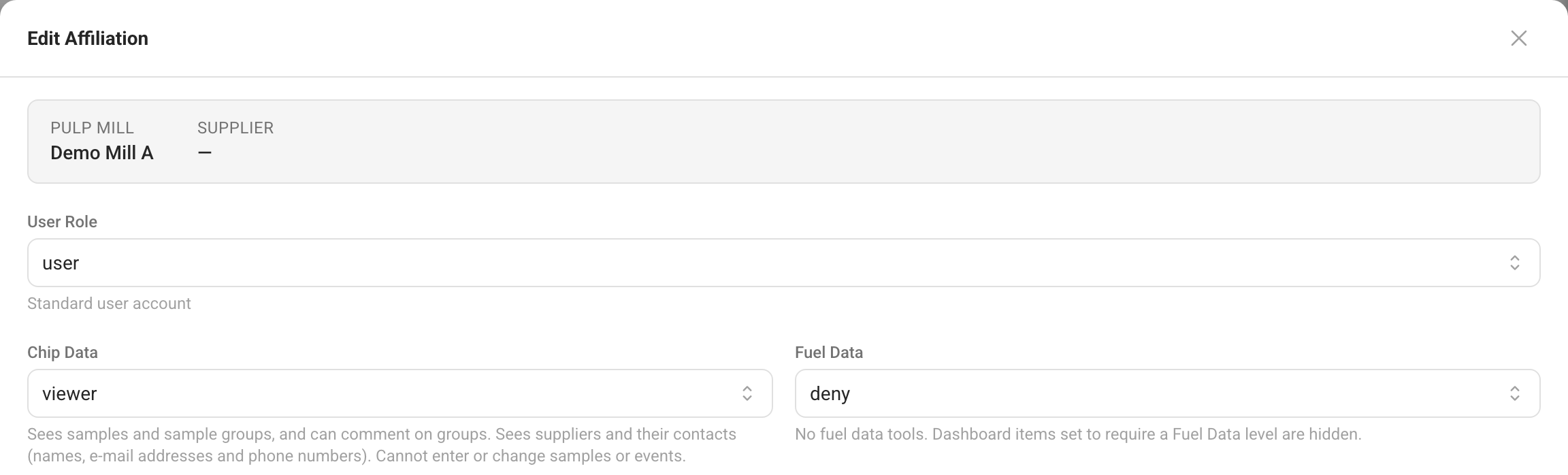
What a person can do is set by their affiliation: their access at one mill. An affiliation has a User Role and one access level for each area of the app: Chip Data, Fuel Data, Financial Data, Reports, Users, Suppliers, and, at mills that have those modules, CAPA and Knowledge Base.
Every area uses the same ladder of levels, from deny through viewer, contributor, reviewer, editor and manager to admin. The levels are set separately, so one person can review samples, see deliveries and contracts, and have no say over other people's access, while another enters samples and does nothing else.
You do not have to remember what each level means. When you edit an affiliation, the line under each area says what the chosen level allows there with access to the whole mill, and it changes as you change the level. On a supplier row the editor notes that a level reaches only that supplier.
Mill staff and supplier logins
An affiliation is either for the whole mill or for particular suppliers, not both. A supplier login has one row for each supplier it works with, and sees samples only for those suppliers; see Supplier logins. What a level allows depends on which kind of access it is on: some things, such as managing people and reports, need mill-wide access whatever the level. Reviewing samples stays with the mill: a supplier login can be allowed to enter samples for its suppliers, but approving and releasing them is the mill's job.
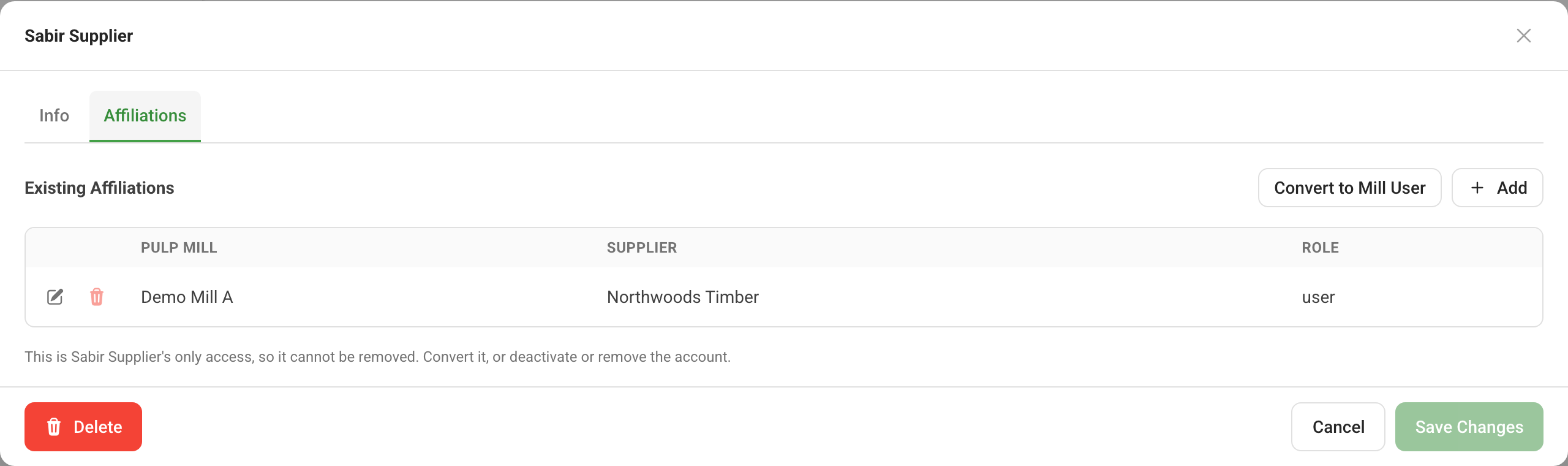
If a person's role changes, Convert to Mill User or Convert to Supplier User swaps one kind of access for the other in one step, and shows what will be removed and what will be added before you save.
Nobody gives more than they hold
A person managing access can give a role or a level only up to their own, area by area. Nor can they change or remove the access of someone who outranks them in managing people. A person's only access cannot be removed: change it, or deactivate the account instead.
Keeping the list current
For the people you manage, each row's menu covers the everyday changes:
- Update User Info for name, contact details and time zone.
- Manage Affiliations for access.
- Send Welcome Email, which resets the person's password and e-mails them a new temporary one.
- Disable User and Enable User. A deactivated account cannot sign in.
- View Activity shows what a person did in the app, such as sign-ins and changes, and what was done to their account.
When a person's mail has a delivery problem, their Info tab shows an Email delivery panel: an address that is bouncing, delivery that has become unreliable, or e-mail they have unsubscribed from. Resubscribe puts the person back on one kind of informational e-mail, for someone who asks. Clear suppression, for an address whose mailbox has been fixed, clears the returned-mail status recorded for that address in The Chip Lab; it needs a higher Users level than resubscribing. Both are recorded against the name of the person who does them. How returned mail and unsubscribes are handled is covered in Automatic email feedback handling.
Who can use it
Users & Permissions is for an Owner or Admin account with mill-wide access and the Users permission at Manager or above. Viewing a person's activity and deleting an account also need Manager on Users at the mill where that person works.