
Log maintenance and supplier events beside your chip data
When a supplier's chips drift, the first question is usually "what changed?" The answer is often somewhere: knives swapped at the chipper, a screen deck rebuilt, a phone call about bark, a site visit last month. But it lives in an email, a notebook or someone's memory, not next to the numbers.
Events in The Chip Lab put those records in the same place as your samples. Each event is dated, typed, optionally tied to a supplier, and can carry notes and files. They then show up beside the sample data and on the trend chart, so the action and the result sit on one timeline.
Where to find it
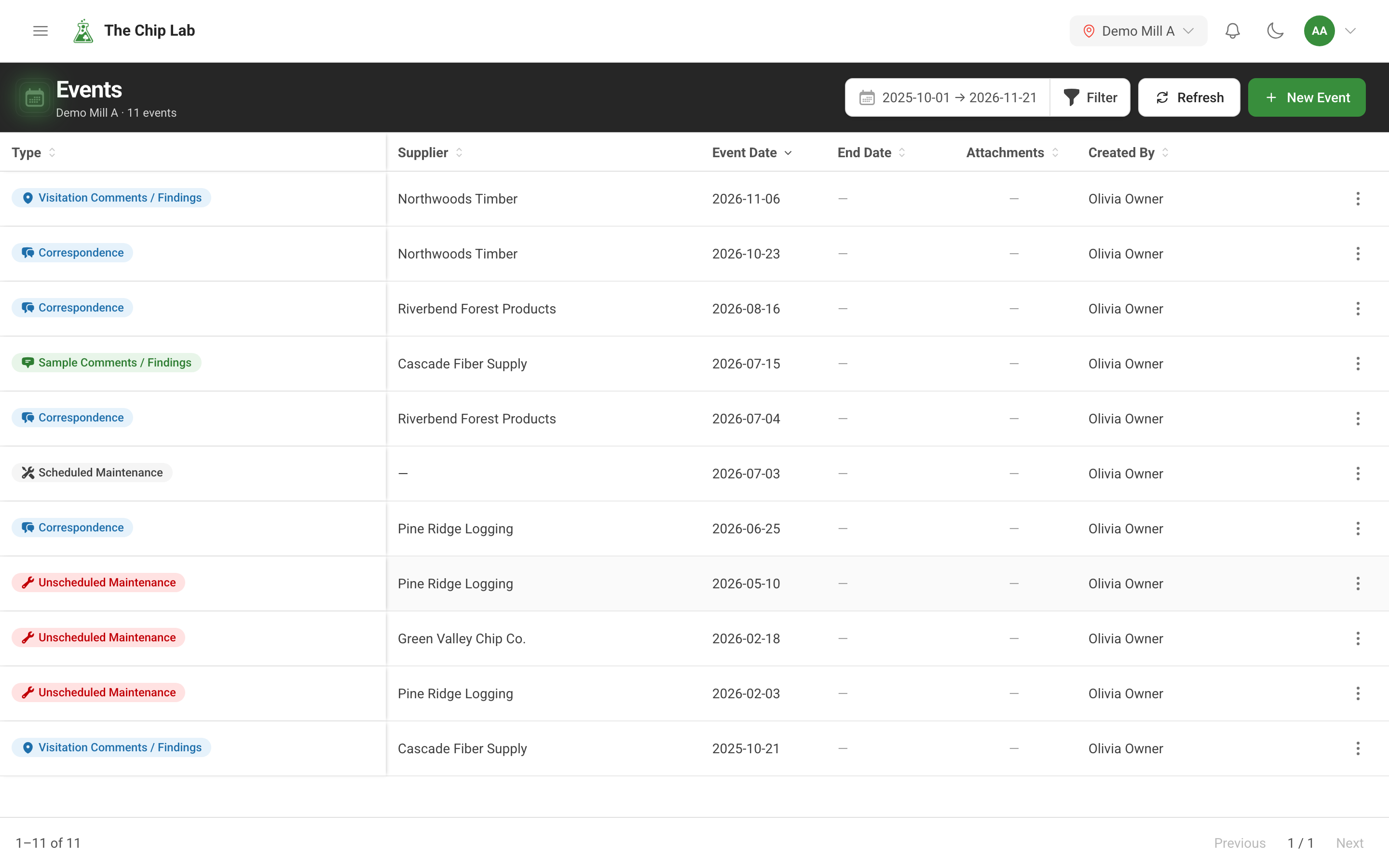
Events & Maintenance in the sidebar has two entries: Enter Events and View Events.
View Events opens the mill's log. Each row shows the event Type, the Supplier (or a dash for events at your own mill), the Event Date and End Date, the number of Attachments, and who logged it. The log opens on the last 30 days; Filter changes the date range and narrows it by supplier group, supply type, product form or individual suppliers. Clicking a row opens the event, and the arrows in its window step through the rest of the list. New Event adds one without leaving the page.
Recording an event
Enter Events opens New Event, a single page built for logging several things in a row.
- Event Type — the types include Scheduled Maintenance, Unscheduled Maintenance, New Equipment Installation, Visitation Comments / Findings, Correspondence, Online Meeting Notes, Sample Comments / Findings and Chip Purchasing Paused. A short description of the chosen type appears under the field.
- Supplier — optional for most event types. Leave it empty for something at your own mill, such as a screen inspection; pick a supplier for a knife change at their chipper or a visit to their yard.
- Timeframe — for most event types, a start date and time, with an optional end (+ Set end date) for things that last, such as a purchasing pause or a shutdown.
- Details — the notes (required), formatted with lists, links and pictures if you like.
- Attached Files — photos, PDFs, spreadsheets, e-mails and other documents. Files you add are uploaded when the event is saved.
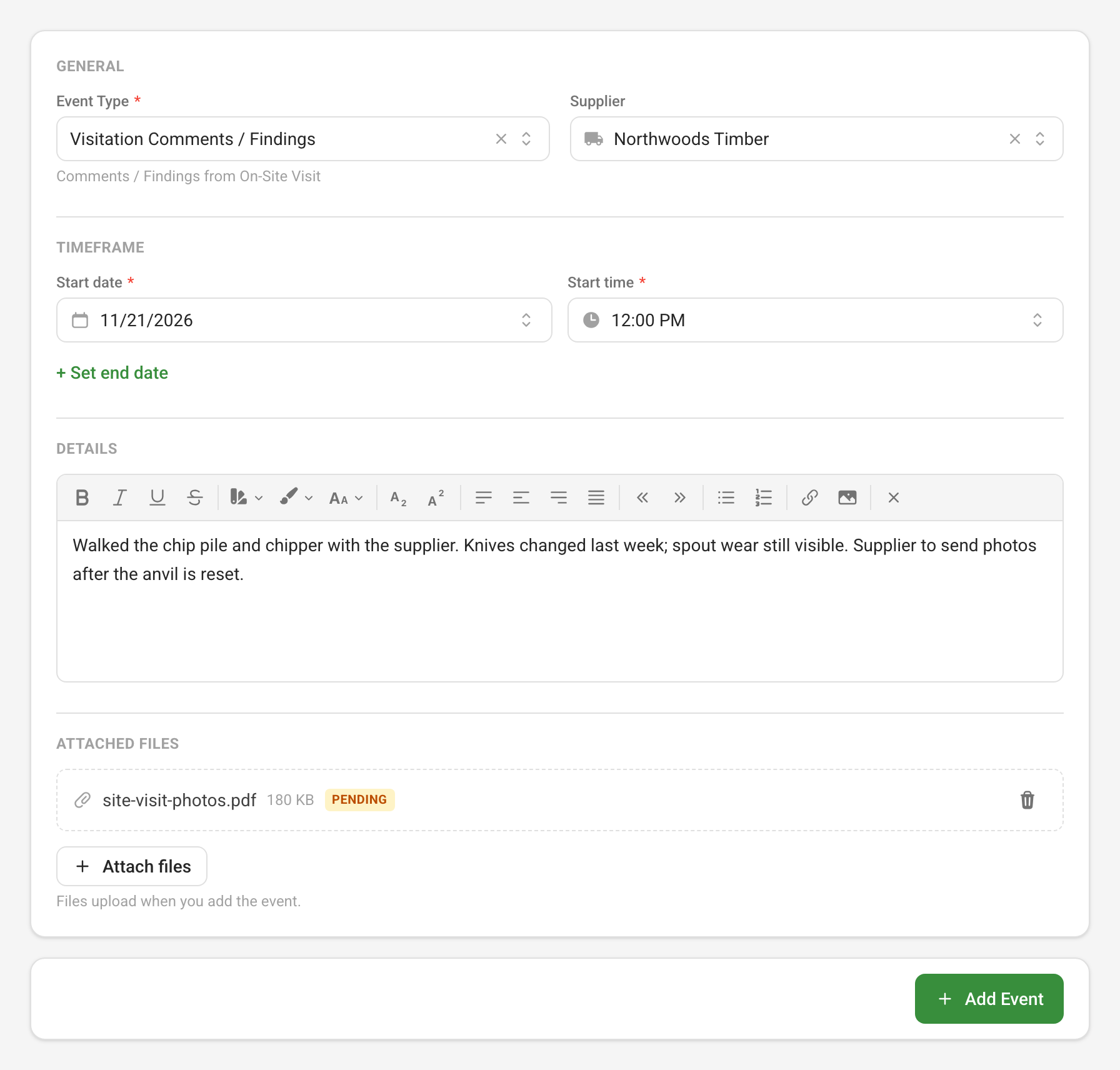
After Add Event, the page keeps the type, supplier and dates for the next entry, so a run of related entries goes quickly.
The person who logged an event can choose Edit Event from its menu in the log to correct it or add files, where they still have access to that event. Open an event to find its attachments. For mills with the Knowledge Base, people who contribute to it can offer a file from an event to the Knowledge Base.
Events next to the samples
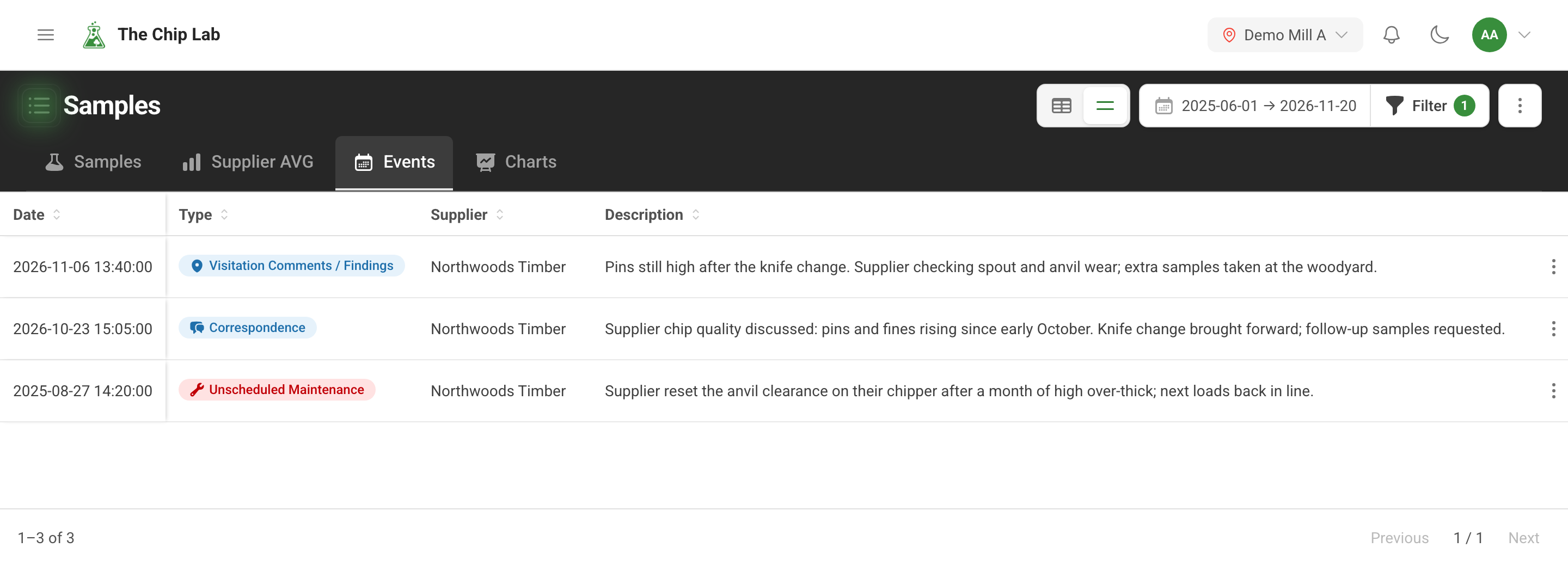
On Samples, once a search returns samples, the Events tab can load events to read alongside them — choose Load events.
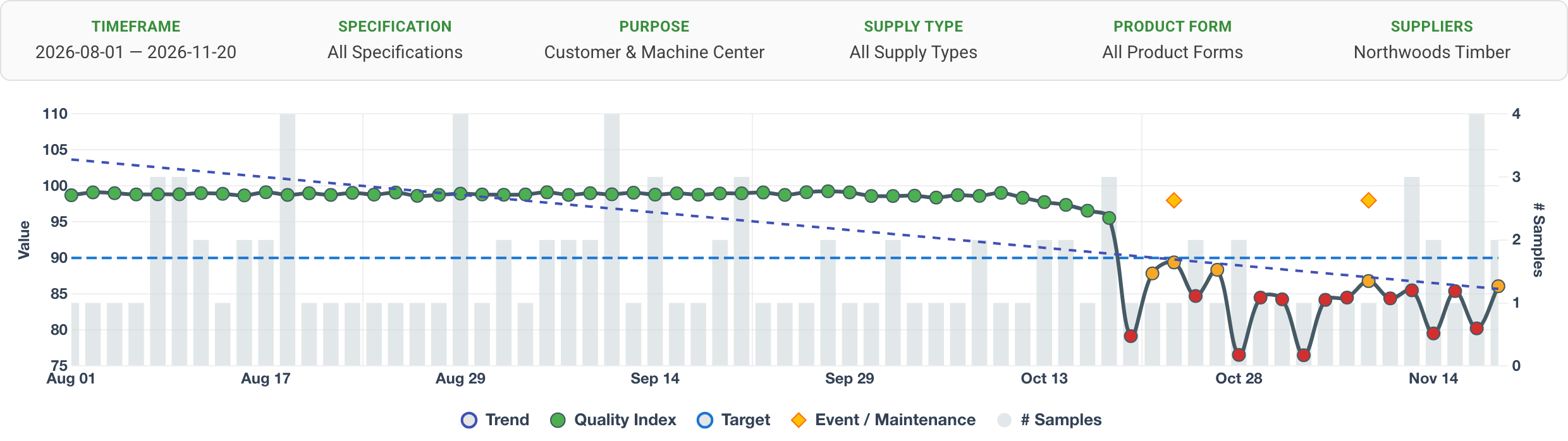
On the Charts tab, the Trend chart plots a property over time and marks days that have events with an orange Event / Maintenance marker. Clicking a marker opens that day's events. A drop in quality followed by a call and a visit, or a recovery after a knife change, is visible at a glance.
A supplier's own page in Supplier Management has an Events tab too, and a dashboard can carry a Recent Events list for the mill.
Events and corrective action
For mills with Corrective / Preventive Action (CAPA), people with access to it can use the same form to record an action against one of a supplier's open incidents, such as an investigation, a root cause or a follow-up. How incidents open, move and close is covered in Corrective and preventive action.
Who can use it
Logging events takes the Chip Data permission at Contributor or above; that is also who sees Events & Maintenance in the sidebar. People who can see samples see the events on the Events tab and the trend chart. A supplier's own login works only with that supplier's events, and filters only by the supplier groups it can view.