Chip classifier data sync: monitoring and backup
An automatic chip classifier measures every sample the yard puts through it, but the numbers only help once they reach the people who act on them. Retyping them is slow and invites mistakes, and a classifier PC that stops sending can go unnoticed until someone asks where the week's samples are.
The Chip Lab connects to classifiers with an external database, such as a Gradex or Rader, through a small program installed on a PC that can reach the classifier's database: the data-sync client. The client reads the classifier's database and sends new samples to The Chip Lab, where they join the samples your people enter by hand. Data Sources is where you watch that connection.
Where to find it
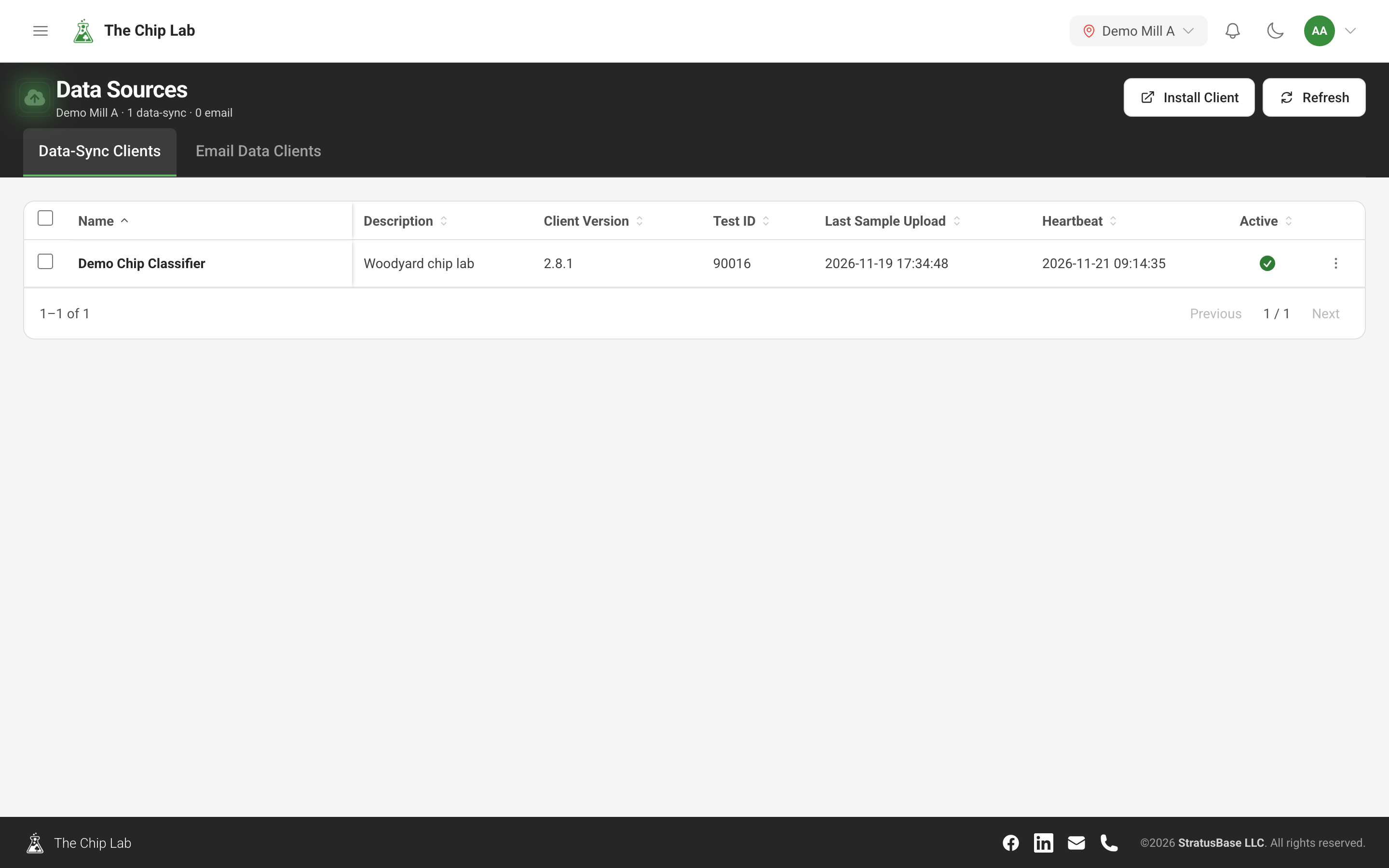
Data Sources, under Management in the sidebar, has two tabs: Data-Sync Clients for classifiers connected through the client, and Email Data Clients for sample or delivery files that arrive by email. Install Client opens the setup article, DataSync Client Setup. Connecting a classifier, and setting up an email data client, is done with The Chip Lab team.
Is the classifier connected?
The Data-Sync Clients grid lists each connected classifier with its Equipment, Client Version, Last Sample Upload and Heartbeat, and whether it is Active. The client checks in while it runs, and Heartbeat shows when it last did. The time turns red when the client has not checked in recently.
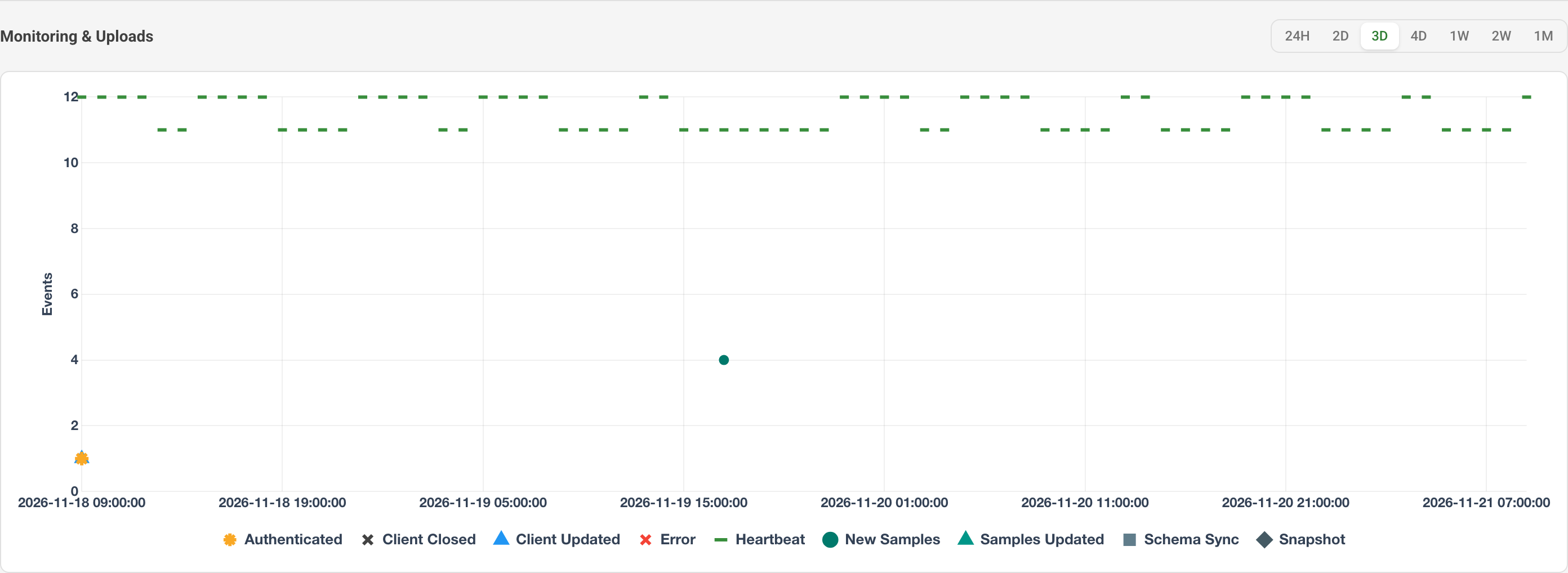
Tick one or more clients and Monitoring & Uploads opens underneath. Choose a window from 24H to 1M, and a chart shows the hourly activity of the clients you selected: Heartbeat, Authenticated, New Samples, Samples Updated, Schema Sync, Snapshot, Client Updated, Client Closed and Error.
What did each upload contain?
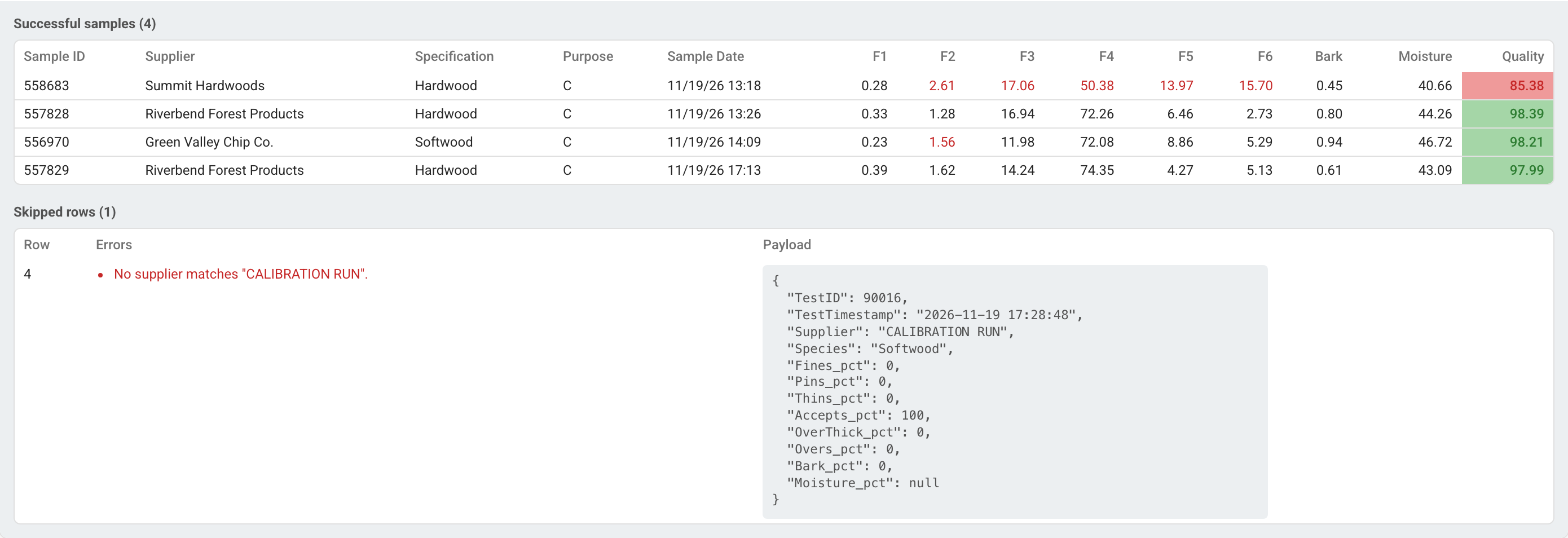
Below the chart, each upload is listed with its Payloads, Samples, Skipped, Size, Created and Processed. Open an upload to see the samples it produced, with supplier, specification and sample date, and values outside specification in red. Under Skipped rows is each row that did not become a sample, with the reason and the row as it arrived from the classifier.
How a row from the classifier becomes a sample is set by the client's sample upload configuration. Create Sample Upload Configuration (Edit Sample Upload Configuration once one exists) walks through how fractions, bark and sample weight arrive and which classifier column feeds which value, and shows a worked example of what happens to each row before you save.
Backup of the classifier's tables
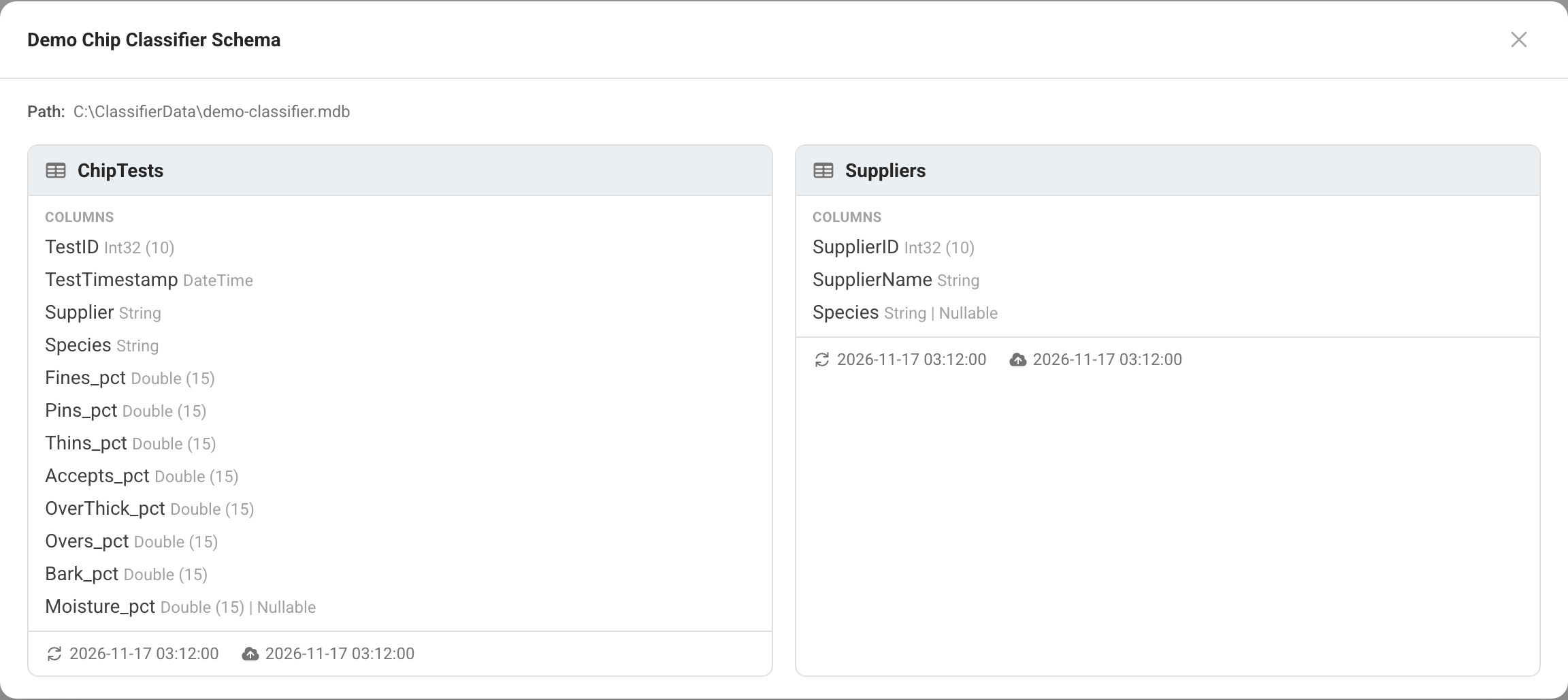
The client also sends copies of the classifier database's tables to The Chip Lab's cloud storage for your mill, and The Chip Lab asks it for a fresh copy regularly. The copies are kept apart from the classifier PC, and if a classifier's data ever needs restoring, The Chip Lab team can restore it from them. View Schema lists each table the client reports, with its columns, when it was last updated and when it was last copied.
Looking after a client
From a client's menu:
- Restart asks the client to restart the next time it checks in; the menu shows Restarting… until the client confirms.
- Disable Data-Sync Client switches a client off, and Enable Data-Sync Client allows it again.
- Credentials shows the client's ID and secret key. Regenerate issues a new key, and Email Instructions sends the setup instructions to the person installing the client.
- Equipment Details records what the device is and how it measures. When a mill's classifiers measure in ways that are not comparable, the page says so above the grid.
Who can use it
Data Sources is in the menu for an account owner or admin with access to the whole mill. Looking after a client — restarting, disabling or enabling it, its key, its sample upload configuration and its equipment details — is for people who also manage who has access at that mill.