Data sync client: connect an on-site classifier database
A chip classifier in the yard already records the tests it runs, usually in a database on the PC beside it. Getting those results in front of the fiber team means someone copying them out, or a connection into the mill network that IT is rightly careful about.
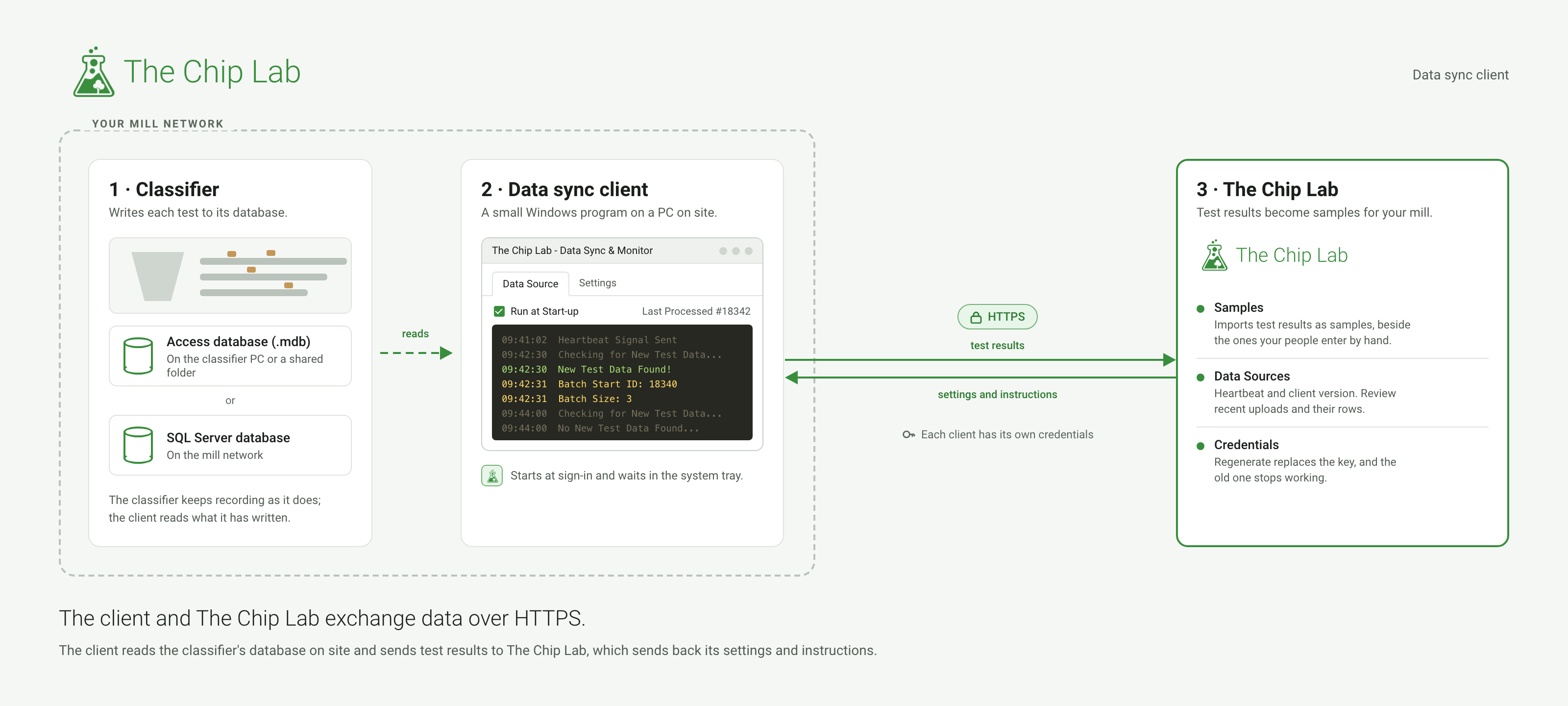
The data sync client closes that gap from the mill side. It is a small Windows program that runs on a PC that can reach the classifier's database. It reads new tests as they are recorded and sends them to The Chip Lab, which imports them as samples beside the ones your people enter by hand.
What it connects to
The client reads a database on the mill's own network, held in one of two forms:
- A Microsoft Access database (.mdb), a file on the classifier PC or in a shared folder.
- A Microsoft SQL Server database on the mill network.
Mills connect chip classifiers such as Gradex and Rader this way.
For results kept as spreadsheet or CSV files, The Chip Lab can set up an email feed instead; it appears under Email Data Clients on the Data Sources page.
How the connection works
- Two-way over HTTPS. The client connects to The Chip Lab over HTTPS. It sends the classifier's test results and receives its settings and instructions back over the same connection. The network details are in DataSync Client Setup.
- Its own credentials. Each client has its own client ID and secret key. Regenerate on the Data Sources page replaces the key, and the old one stops working.
- Database access. The mill's IT team and The Chip Lab agree the client's access to the database during setup.
- What it sends. The client sends the classifier's test results to The Chip Lab, where they become samples. What each client has sent can be followed on the Data Sources page.
- When it sends. For an Access file, the client notices when the classifier writes to it; for SQL Server, it checks every minute or two. It checks in with The Chip Lab every few minutes either way.
- Updates. The client is installed from The Chip Lab and checks for a newer version when it starts. Restart on the Data Sources page asks it to restart the next time it checks in.
What your mill needs
- A Windows PC with internet access that can read the classifier's database: often the classifier PC itself, or one with access to its shared folder. The client uses the Microsoft .NET Framework that current versions of Windows include.
- Network access between that PC and The Chip Lab over HTTPS, as described in DataSync Client Setup.
- For an Access database, read, write and create rights on the database's folder for the Windows account that runs the client. Access uses them to share the file with the classifier software.
- For SQL Server, database access for the client, agreed during setup.
The client runs in the Windows session of the account that installed it. With Run at Start-up ticked, it starts when that account signs in and waits in the system tray.
Getting it set up
Connecting a classifier is done with The Chip Lab team. Install Client on the Data Sources page opens DataSync Client Setup, which walks through the steps, and Email Instructions sends the setup instructions to whoever installs the client.
In the client, the Register Data Source tab takes the Device ID and Secret Key; Register Device signs it in. For an Access database, you then pick the database file. The Chip Lab team sets up which tables hold the tests, and how each row becomes a sample. From then on, the client's window lists each batch it sends, and the Data Sources page shows the same activity.
Who can use it
The Data Sources page is for an account owner or admin with access to the whole mill. A client's key, restarting it and its settings are for people who also manage who has access at that mill.