
Chip quality alarms with email and in-app notifications
Problems with chips rarely announce themselves. Bark creeps up over a week of loads, a supplier quietly stops sending samples, a sampler breaks and nobody notices the gap until the monthly report. By the time someone looks, the chips are in the digester.
An alarm in The Chip Lab watches your sample data for you. You describe the samples to watch and the condition that should worry you, pick who to tell, and the platform checks on a schedule you set. When the alarm changes state — it goes off, or it clears — its recipients are notified by email and in the app.
Where to find it
Alarms & Notifications, under Management in the sidebar, lists your mill's alarms with their Status, Last Status Update and Description. You can filter the list by name or description, or by status. Each alarm's menu can view it, switch it on or off, or delete it.
The sidebar entry shows for Admin and Owner accounts with access to the whole mill. Creating an alarm, switching it on or off and deleting it takes the Chip Data permission at Manager or above.
Building an alarm
Add Alarm opens Create Alarm, a five-step wizard: General, Data Filters, Conditions, Recipients and Review. Each step shows a tick once it is complete, and Review opens when the first four are.
General names the alarm and says what it means when it goes off — the email carries this description, so it is worth writing for the person who reads it on a phone. Here you also set how often the alarm is checked, in minutes: one interval while it is Ok, another while it is in Alarm. An Active alarm is checked on that schedule.
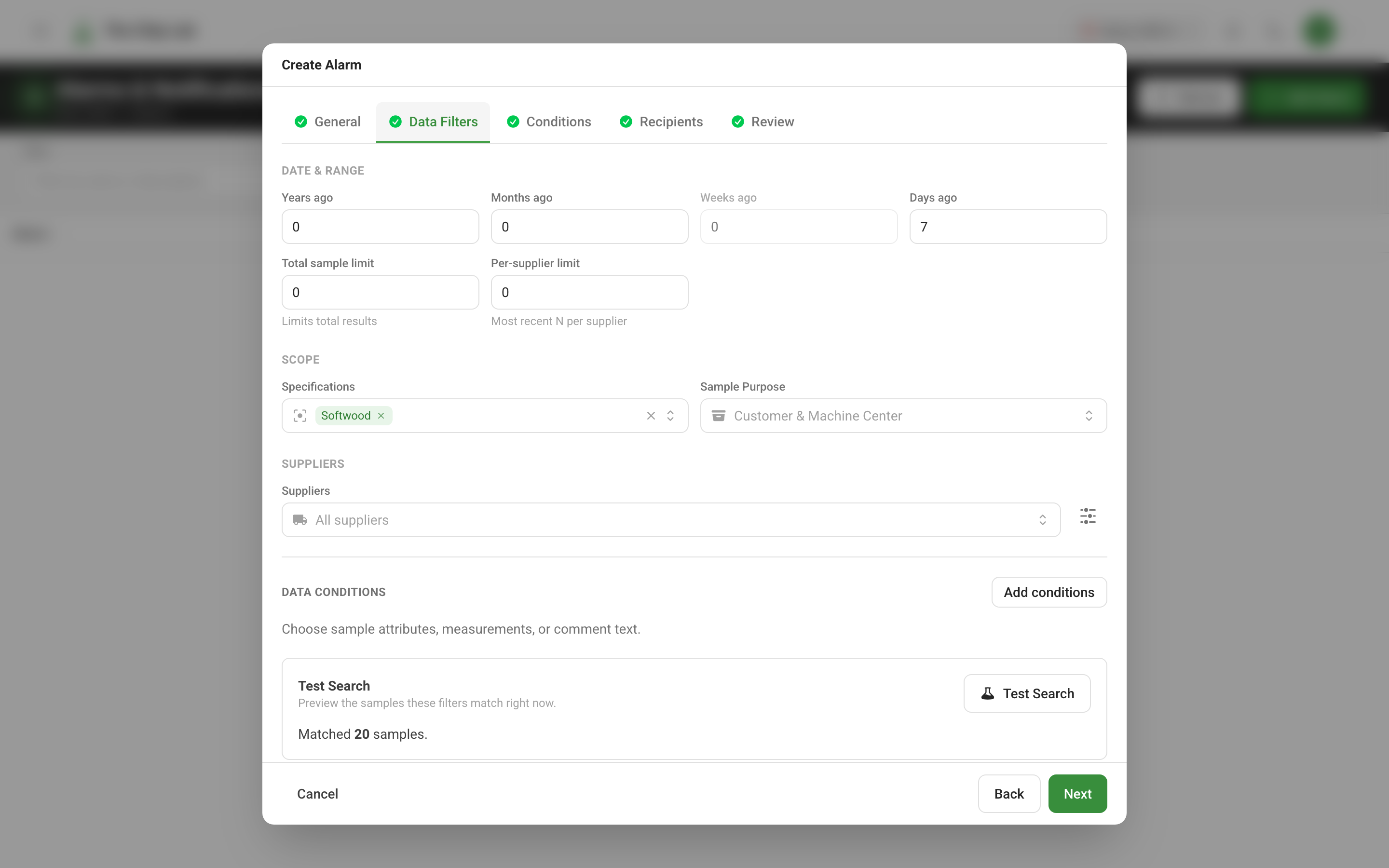
Data Filters chooses the samples the alarm looks at, with the same filter panel used on the Samples page. The date range is a rolling window by sample date — the last seven days, the last two months — so it moves forward as time passes. Narrow it by Specifications, Sample Purpose and Suppliers, or add Data conditions on the measurements themselves. Test Search lets you try the filters before you go on.
Conditions decides what is worth an alarm. Pick a Statistic:
- Count looks at how many samples match. It catches what is missing — no hardwood samples in two days, fewer than three samples from a supplier this week.
- Average looks at the average of a measured value across the matching samples. It catches drift — softwood bark averaging above 1% over the week, moisture falling under a limit.
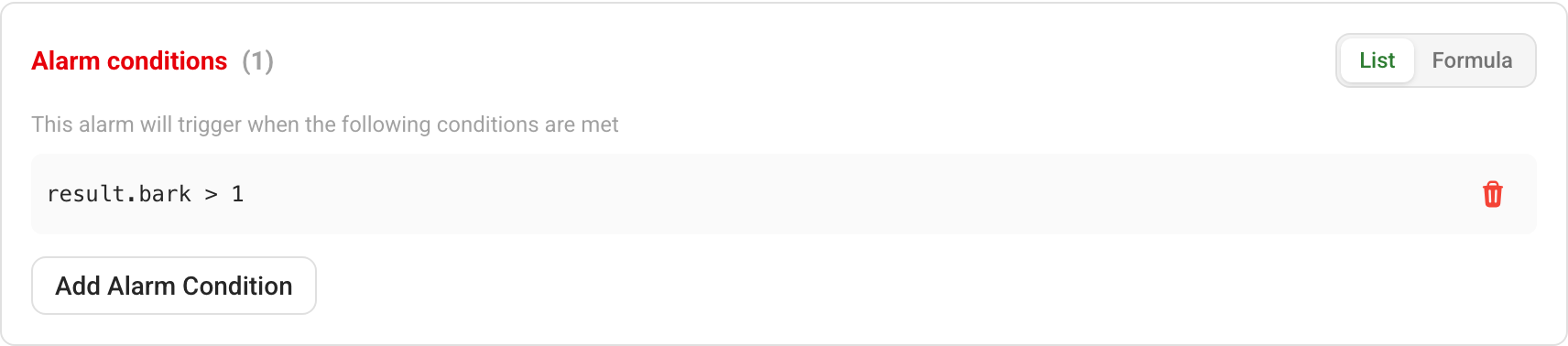
Then add one or more alarm conditions, each a comparison against a threshold. Several conditions combine with AND or OR, and can be grouped. The Formula view shows the whole rule as the platform evaluates it.
Who hears about it
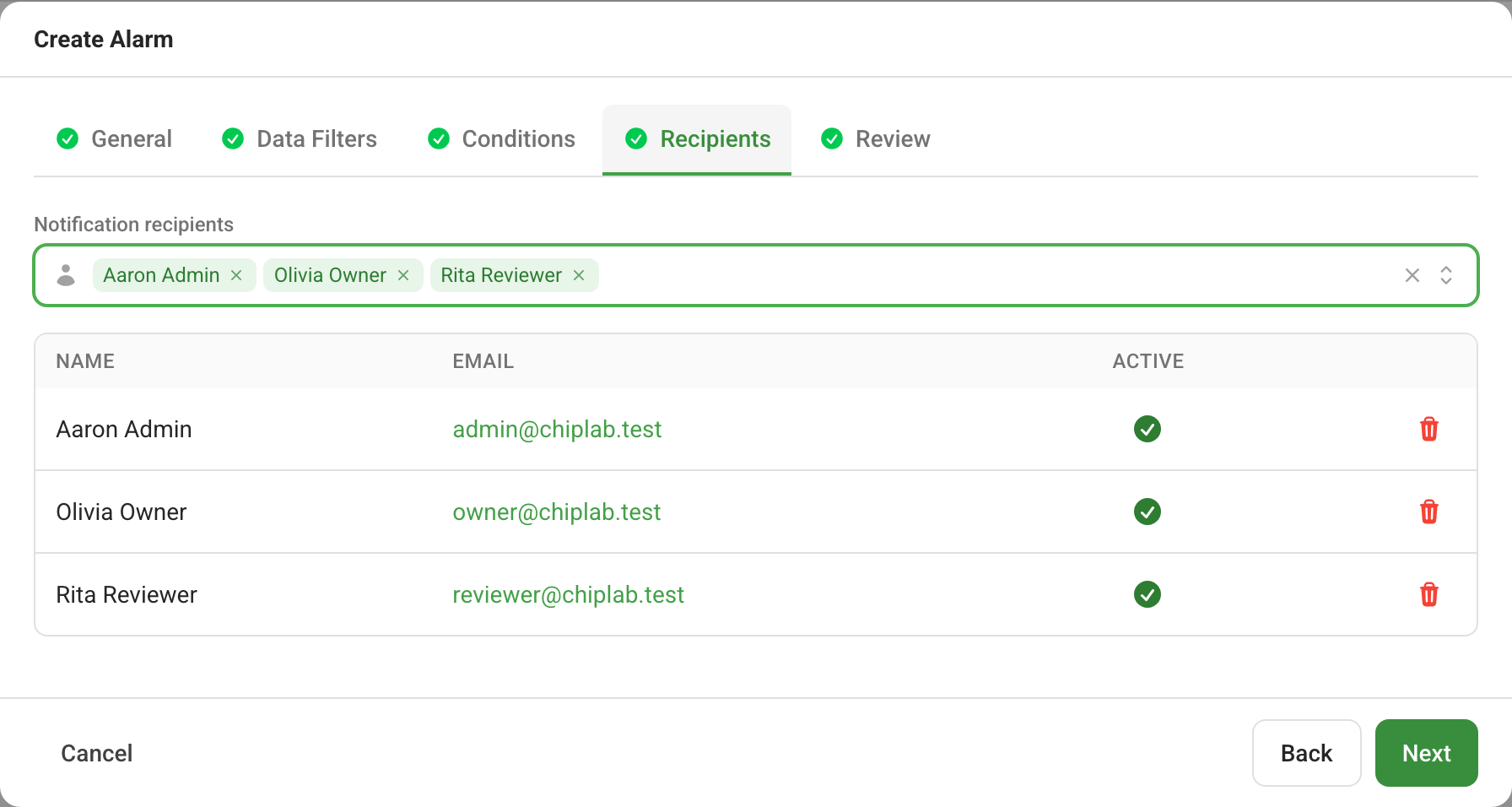
Recipients picks the people on your team to notify, from the users of your mill.
When an alarm changes state — it goes off, or it clears — its recipients are notified:
- by email, with the alarm's name, its description, the change of status and a View Alarm button;
- in the app, under the bell in the top bar, with a link to the alarm. The bell shows how many notifications are unread, and Mark all read clears the unread count.
A recipient whose email is returned can be switched off on that alarm, and re-activated from the alarm's page with Re-activate; see Automatic email feedback handling.
Following an alarm
Click an alarm's name to open its page: a Summary, its current Status and its intervals, the Configuration in plain terms (User Friendly) or as the exact rule (Source Code), a Status History with the date of each change, and the Notification Recipients.
Read next
- Finding samples: filter chip history by what was measured — the filter panel and data conditions an alarm is built on.
- Supplier chip quality against target: overview and alerts
- Log maintenance and supplier events beside your chip data
- Scheduled chip quality reports by email