
Sample review and approval: check chip samples before they count
A chip sample feeds supplier averages, quality alerts, the monthly report and the conversation with the supplier. One mistyped fraction or a sample logged against the wrong supplier can move all of them.
The Chip Lab can hold new samples in a review queue until someone at your mill approves them. A held sample is left out of averages, quality alerts and reports until it is approved; the Samples page shows it only when you ask for held samples with the On hold condition. On the way through, a reviewer can correct it, re-label it or reject it. (The dashboard's latest-samples list does show it, with Approve in its menu.)
How samples arrive
Samples are typed in on the Manual Sample Entry page, sent in as a file by email, or sent automatically by the data sync client. Review is switched on for your mill when it is set up with The Chip Lab team, and can also apply to individual suppliers. With it on, new samples wait in the queue instead of going live — on manual entry the save button reads Save & Hold. Below the entry form, Your entries lists the last samples you entered at that mill with their status, so you can see what is still waiting.
The review queue
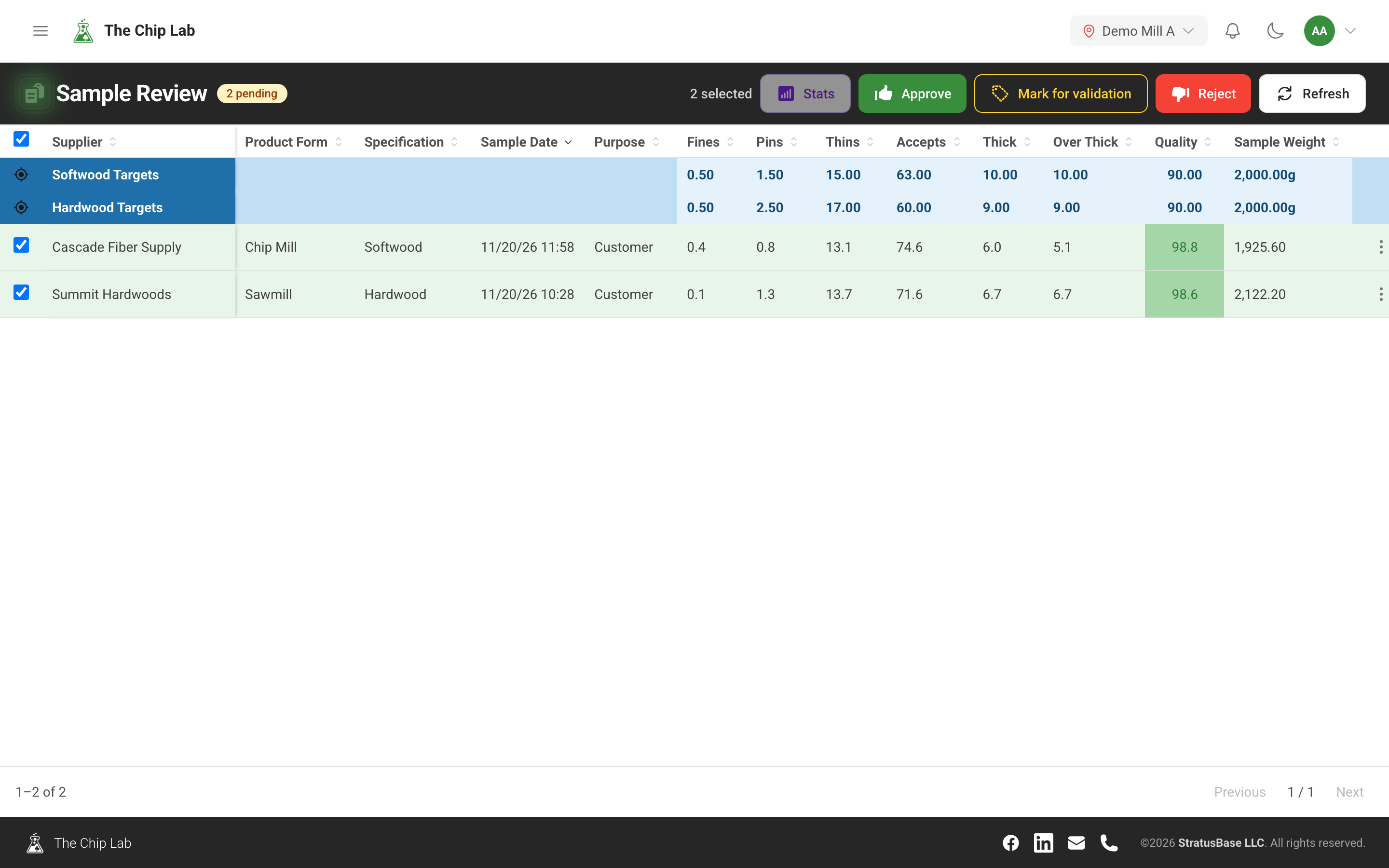
Review Pending Samples, under Chip Data in the menu, opens Sample Review. It needs the Chip Data permission at Reviewer or above. The grid shows the pending samples with the same columns, targets and coloring as the Samples page, so an out-of-spec value stands out before it is approved. Select samples and use the toolbar, or open a row's menu:
- Approve releases them into your live sample data.
- Edit corrects a value before approving. It needs Editor or above; a Reviewer approves and changes samples on approval, but does not edit them.
- Reject removes them from your mill's dataset. It needs Manager or above.
- Stats compares one selected sample with that supplier's previous samples on the same specification and purpose, measurement by measurement. While the panel is open the other actions wait; close it to approve or reject.
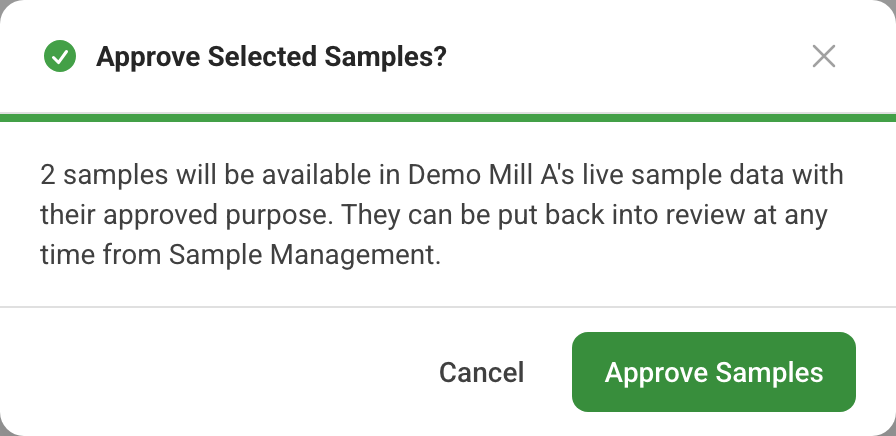
Every approval and rejection asks for confirmation first, and says exactly what will happen to how many samples. Review belongs to the mill: a login set up for a supplier can enter samples, but never approves, releases or rejects held samples, its own entries included.
Files that failed to import also land here, highlighted. Click a highlighted cell to fix the value that stopped the import, or select the record to delete it.
Changing a sample on approval
Sometimes the measurements are right but the label is not: a customer sample was really a validation check, or the sample source is wrong. A reviewer can choose Change on Approval from the sample's menu, pick the field — Purpose or Sample source — and the Value on approval.
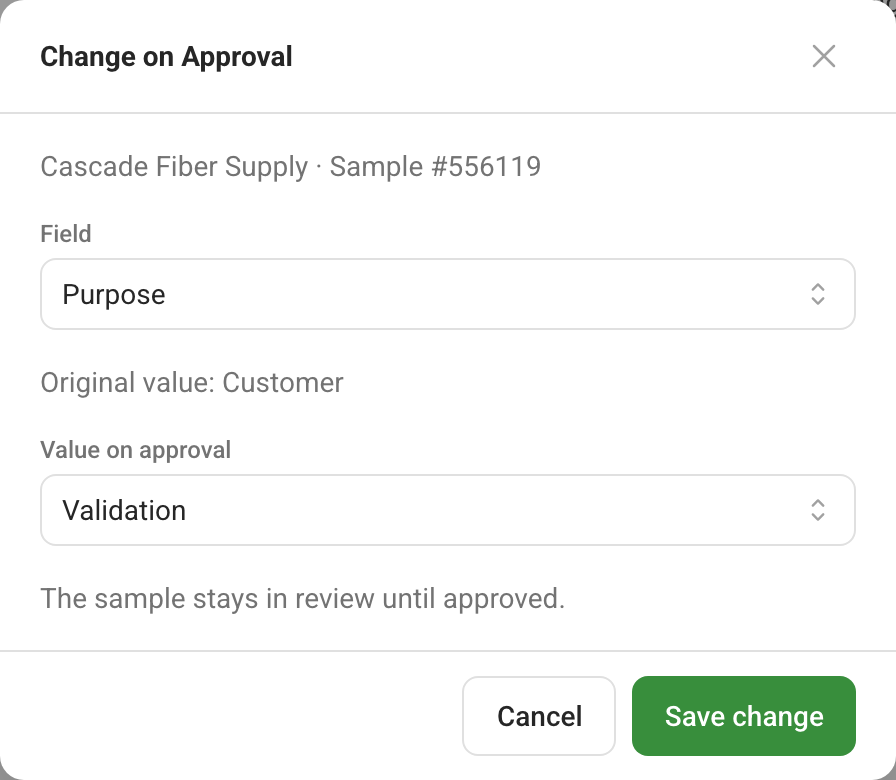
The sample stays in the queue, with the original value struck through beside the one that will apply and a note of who asked for the change and when. The change takes effect with the approval and stays visible afterwards in the sample's history. Mark for validation is the shortcut for the most common case: a sample approved as Validation is kept, but left out of your normal live sample data.
Sample Management: live samples in bulk
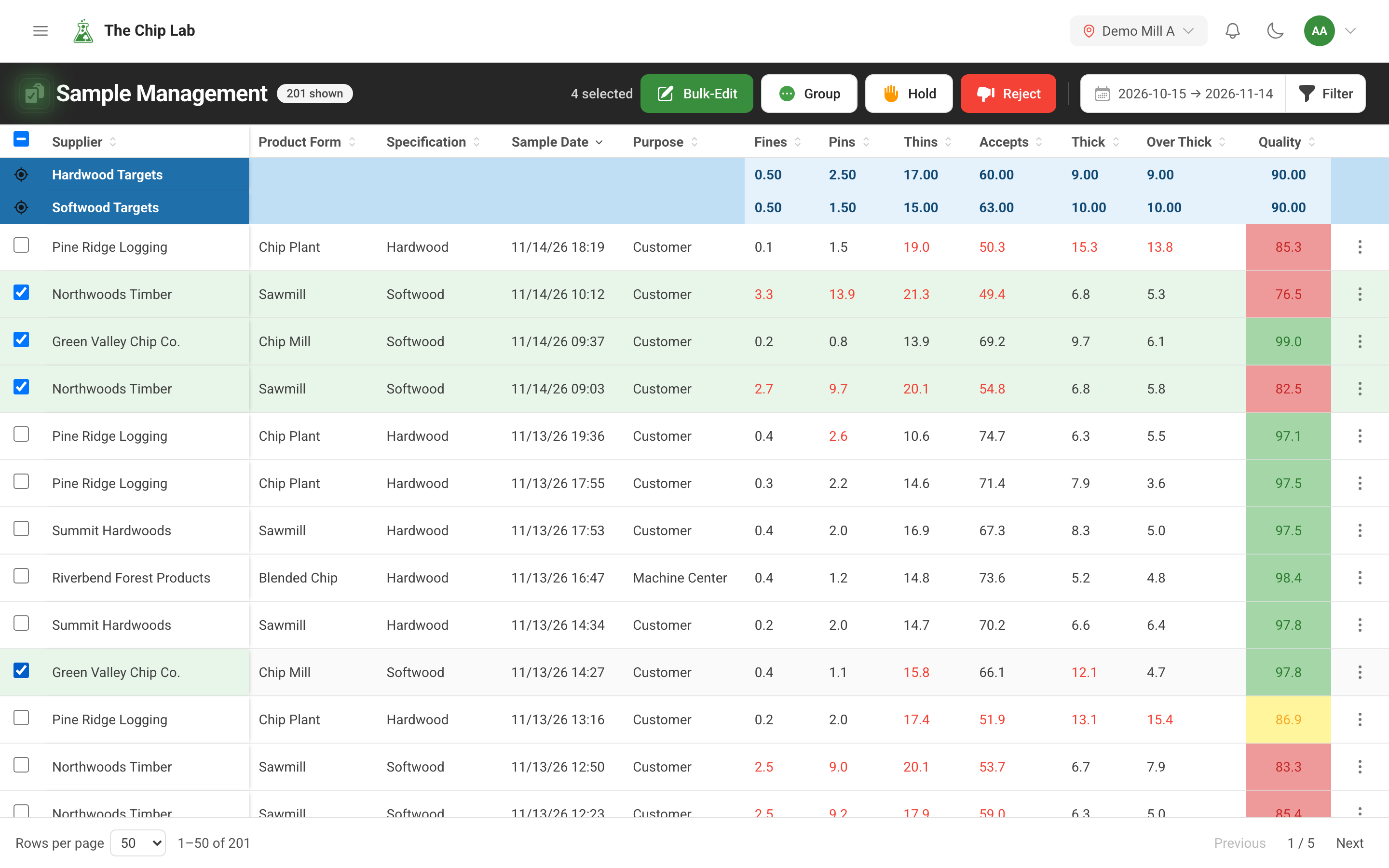
Sample Management, also under Chip Data, deals with what is already live: a sample logged against the wrong supplier, or a run worth setting aside. It opens empty. Use the same filter panel as the Samples page to find the samples you mean, select them, and act on the selection:
- Edit one sample, or Bulk-Edit several: specification, supplier, sample purpose, sample source, sample type or operator.
- Group saves them as a sample group to compare and discuss.
- Hold takes them out of live data and back into review until they are approved again.
- Reject removes them.
The page is for people who can see the mill's samples, at Reviewer and above. With mill-wide access, editing and holding need Editor, and rejecting needs Manager. A login set up for a supplier edits and holds only that supplier's samples — at Editor the ones it entered itself, at Manager any of them — and rejects a live sample only if its own login entered it. A supplier company's own account changes only the samples that account entered. Creating sample groups requires mill-wide Chip Data at Reviewer or above; supplier-side grouping is additionally limited to samples the person may edit, and a login affiliated only to one supplier cannot create groups.
Read next
- Finding samples — filtering sample history by the measurements themselves.
- Manual sample entry
- Setting up the data sync client