
Scheduled chip quality reports by email
A supplier who hears about a bad week three weeks later cannot do much about it, and a fiber manager building the weekly numbers by hand spends Monday morning on the numbers instead of the suppliers. Feedback works when it is regular, on time and the same every time.
The Chip Lab builds your reports from the samples already in the system and emails them on a schedule you set, or the moment something happens. Each supplier gets their own report, with their own samples, their rank among your suppliers and their trend against your targets.
Where to find it
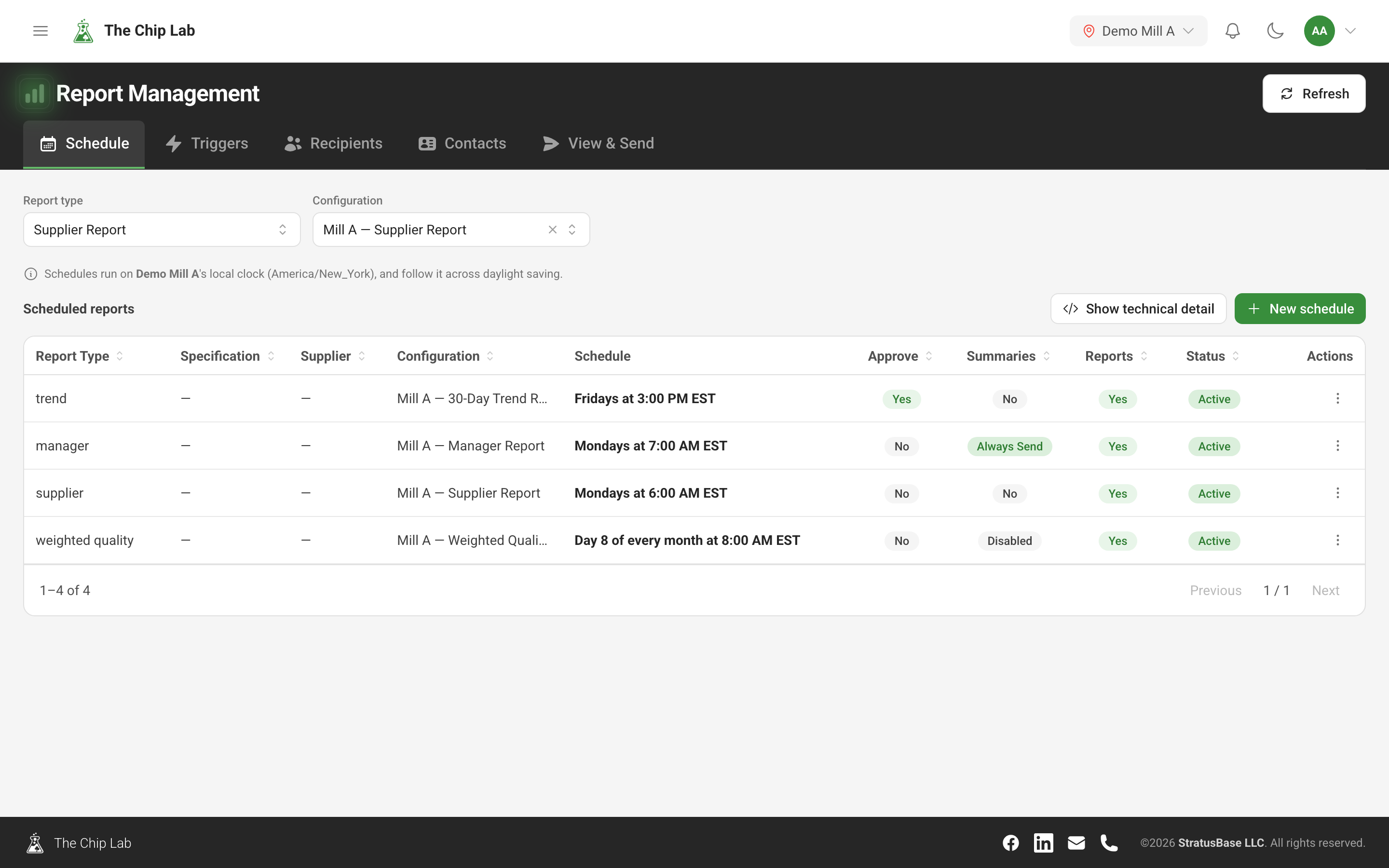
Reporting, under Management in the sidebar, opens Report Management. It has five tabs: Schedule, Triggers, Recipients, Contacts and View & Send. Pick the Report type and, where your mill has more than one, the Configuration at the top. Schedule and Triggers list your mill's schedules and triggers; Contacts and the report's recipient lists follow the report type you picked, and View & Send works on the picked type and configuration.
Report Management is for an Admin or Owner account with the Reports permission at Manager or above.
The reports
Which reports a mill has depends on how it was set up. Typical types are a supplier report sent to each supplier, a manager report for the mill, a trend report, a weighted quality report and a sample report about a single sample. A configuration fixes what a report contains — its specifications, periods and sections — and is set up with The Chip Lab team; in Report Management you choose between your mill's configurations. What each report shows is covered in Chip quality reports: what each report shows.
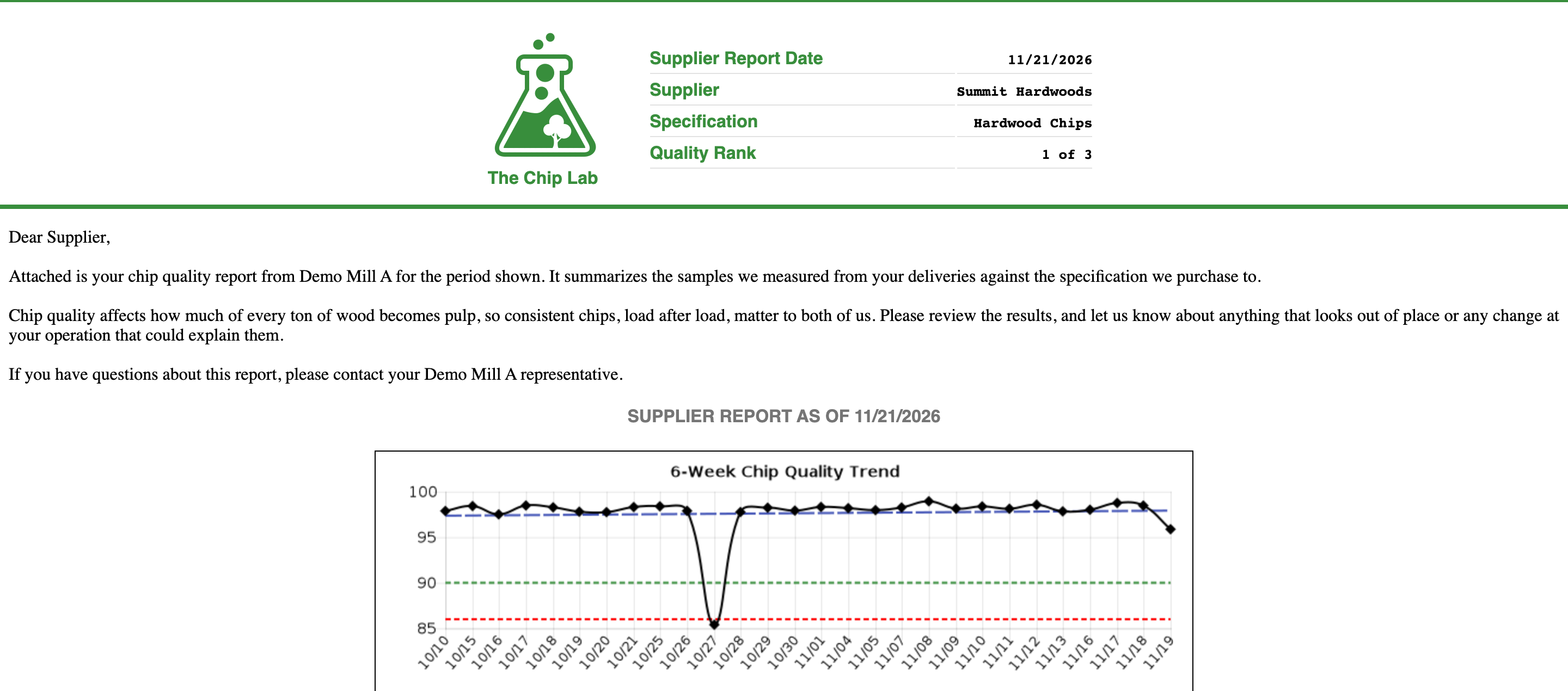
Reports are emailed as a PDF. A supplier report opens with a short cover letter and the supplier's quality rank, followed by trend charts against your target and control lines and the samples behind them.
Schedules
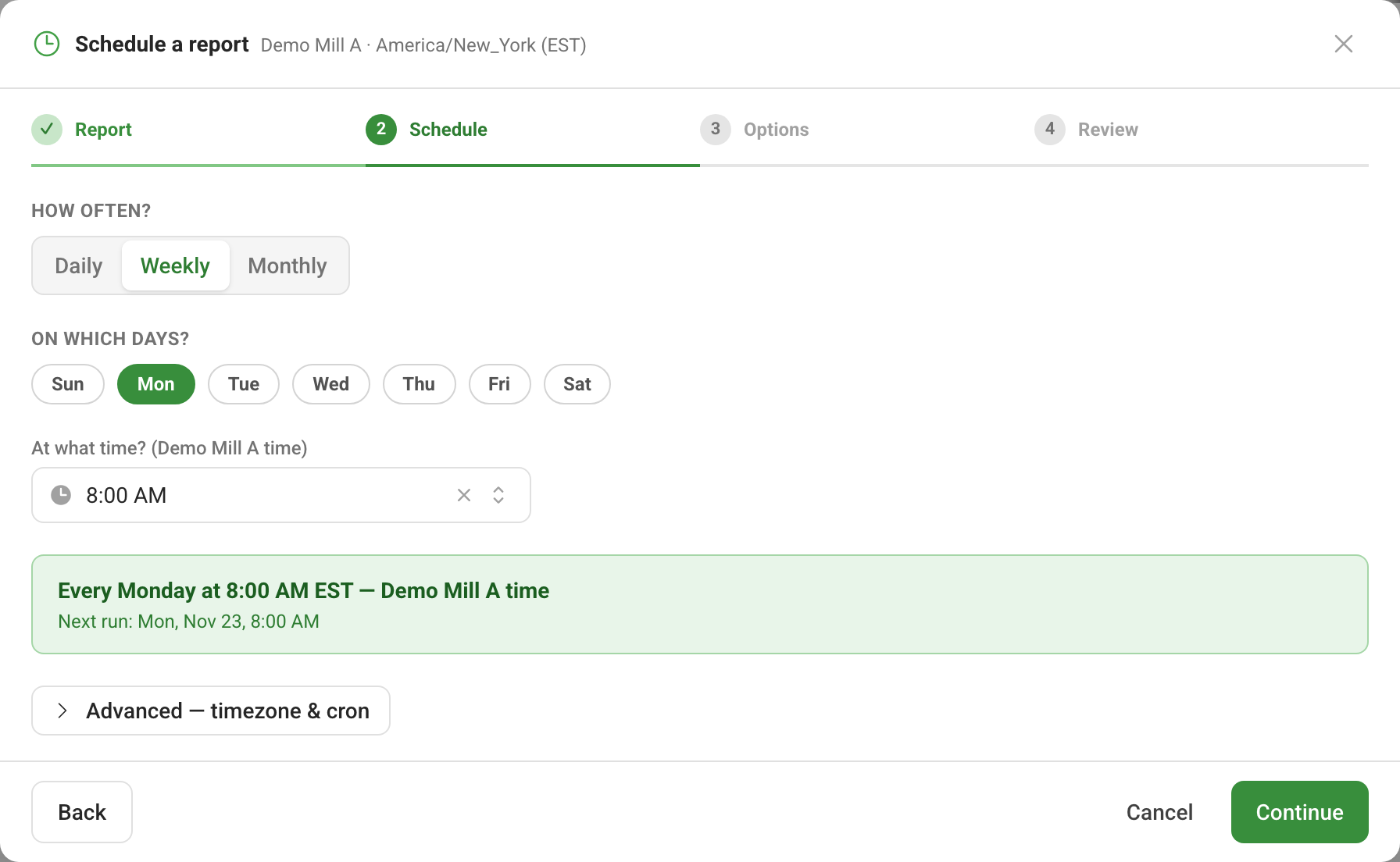
On the Schedule tab, New schedule opens a four-step wizard: Report, Schedule, Options and Review.
Choose the report and, if you like, narrow it to one specification or one supplier; left blank, it covers the whole mill. Then say how often — Daily, Weekly or Monthly — on which days, and at what time. Times are on the mill's local clock and follow it across daylight saving, so a report set for Monday at 8:00 AM arrives at 8:00 AM all year. The wizard shows the next run before you continue. Under Advanced — timezone & cron you can schedule against your own time zone or another one instead.
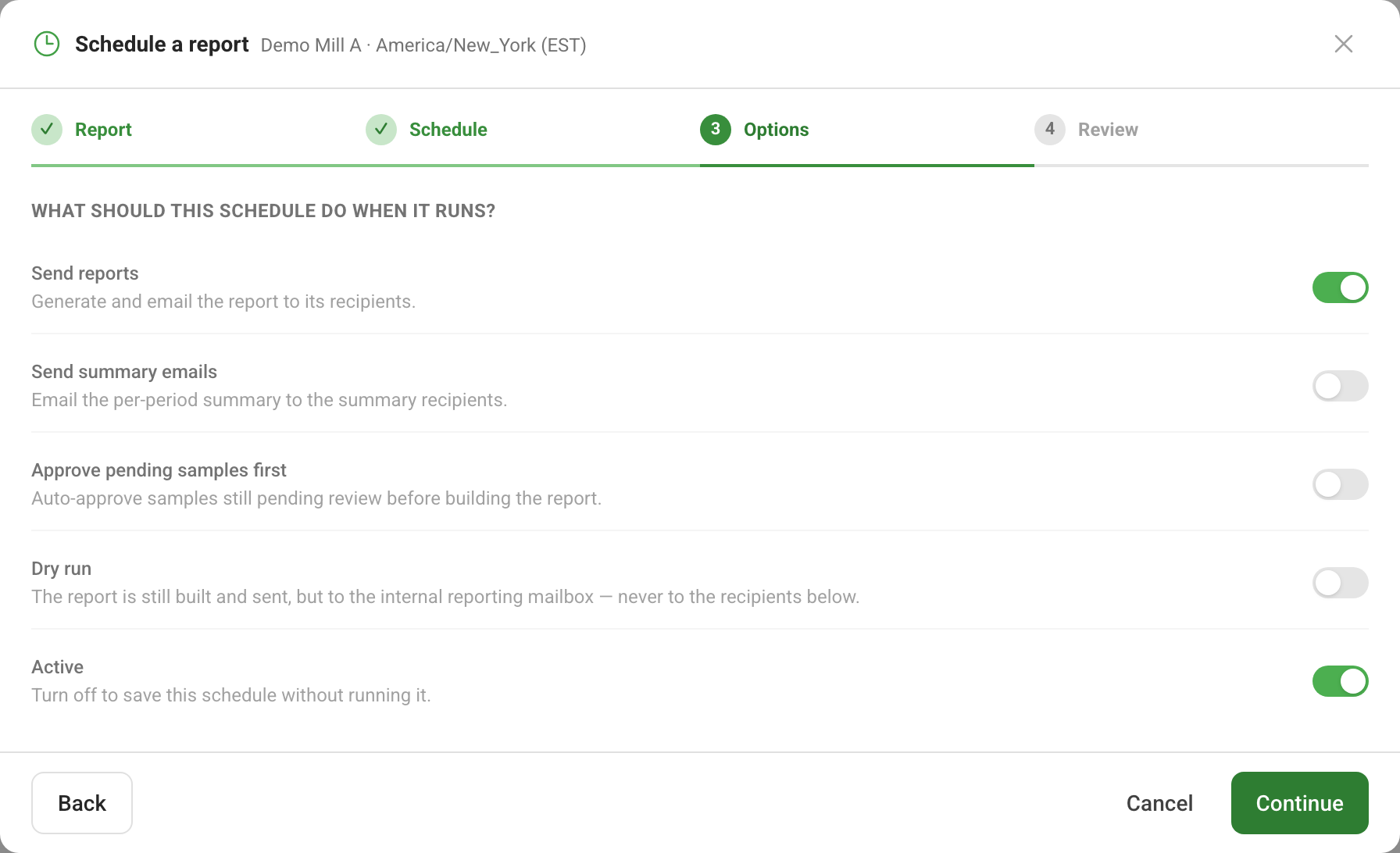
Options decides what the schedule does when it runs:
- Send reports to the report's recipients.
- Send summary emails to the summary recipients, where the configuration has summaries.
- Approve pending samples first, before the report is built. The wizard warns that this approves samples without human review. Review belongs to the pulp mill, so a sawmill account's schedules never approve samples: there the option is shown switched off.
- Dry run builds and sends the report to an internal mailbox instead of the recipients — a rehearsal before a schedule goes live.
- Active — turn it off to save a schedule without running it.
Review lists who will receive the report as things stand today, and warns when nobody would. A supplier report goes once per supplier, each to that supplier's own contacts, so you can pick a supplier to see exactly who receives theirs.
Each schedule's menu can edit, pause or resume it, switch dry run, Run Now after a confirmation, or delete it. A schedule in dry run is labeled Dry run.
Triggers
A trigger sends a report when a sample is created, updated or deleted, optionally only for one specification or supplier — for example, a sample report the moment a sample is recorded for one supplier. Triggers have their own tab and their own article: Report triggers.
Who receives what
The Recipients tab holds three lists:
- Report Recipients — who gets each report, by email or fax, optionally limited to a specification, supplier or configuration.
- Summary Report Recipients — who gets the summary emails.
- E-Mail Feedback Recipients — users told when email to a recipient bounces or is rejected.
A recipient whose address keeps failing is flagged in the list. How bounces are handled is covered in Automatic email feedback handling.
Sending on demand
View & Send lists the suppliers for a specification, ranked by quality, with how many recipients each has. For any one of them you can open the report as a PDF, preview the report or the email on screen, or send it now; Send All and Send Summaries send the whole set. A Dry run switch at the top sends to your own inbox only. For a sample report, you enter a Sample ID instead.