
Supplier groups: review and watch suppliers together
Fiber managers rarely think about suppliers one at a time. Purchased chips against the mill's own chipper, the sawmills up north against the ones to the south, the suppliers on a new buying program: the question is usually how a set of suppliers is doing, and which one in the set is pulling it down. Picking the same suppliers out of a list every month is slow, and it is easy to miss one.
In The Chip Lab you name the set once, as a supplier group, and use it on the Samples and averages pages, in the events log and in alarms.
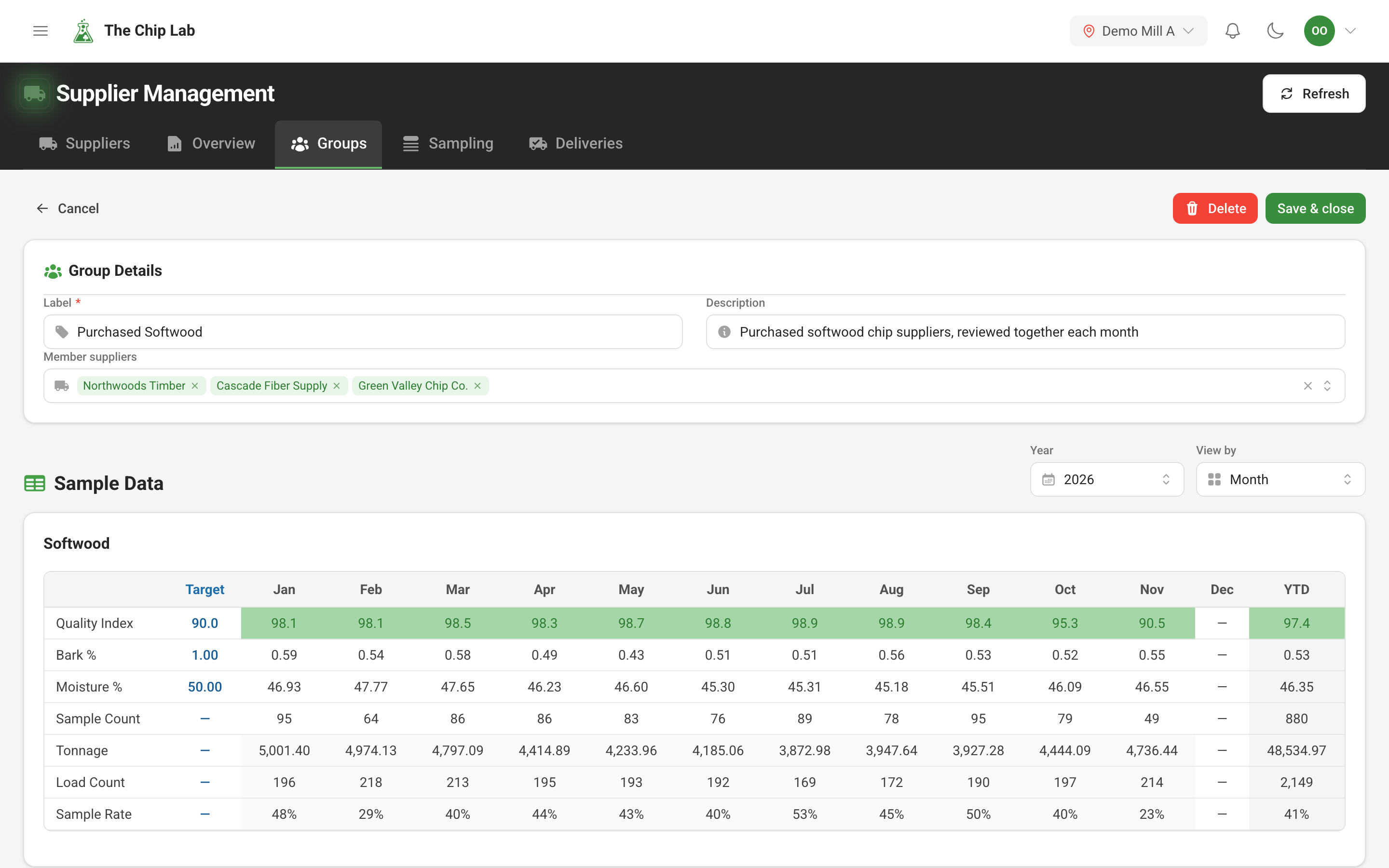
Making a group
Suppliers, under Management in the sidebar, opens Supplier Management; at a pulp and paper mill, the Groups tab lists your mill's groups. New group asks for a Label, an optional Description and the Member suppliers, and Save & close keeps it. A supplier can sit in more than one group, so the same supplier can count in a regional group and in a buying-program group.
Groups are lists you choose. The label and description are yours, so name a group for what it is to you.
Deleting a group removes the group only; its member suppliers and their samples are not affected.
The group's numbers
Open a group and, under Sample Data, every specification gets a card for the Year you pick, viewed by month, quarter or year (View by). The first table is the group as a whole, with targets where they are set, Sample Count and, where deliveries are recorded and your access shows them, Tonnage, Load Count and Sample Rate. Below it, the Sample property you choose is shown for each member supplier, side by side, so the supplier pulling the group's numbers down stands out.
Using a group elsewhere
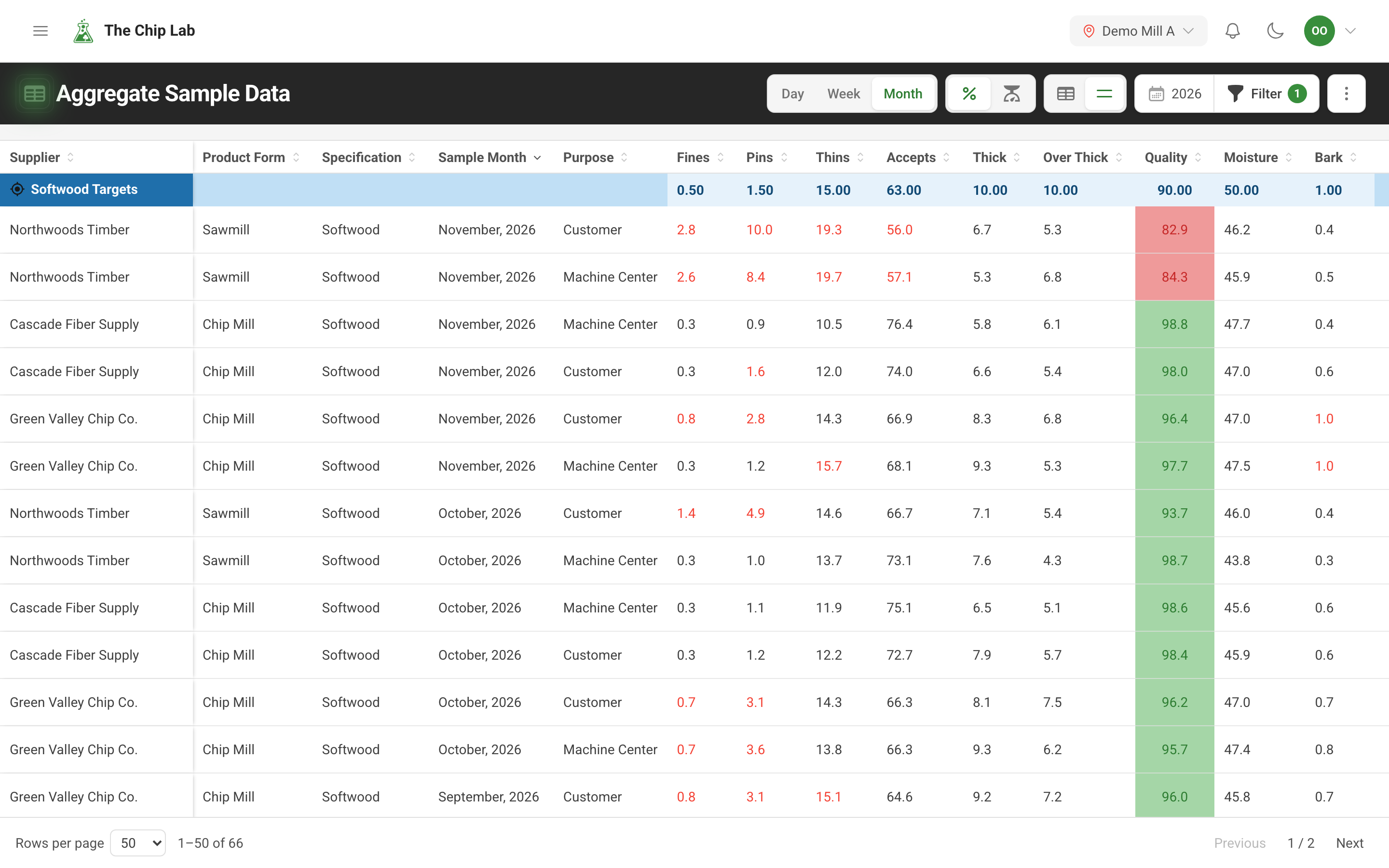
A group is also a filter. In View Sample Data and View AVG Sample Data, the supplier filters have a Supplier group field: pick a group and the grid shows its members' samples or averages only. View Events filters by group the same way; see Events.
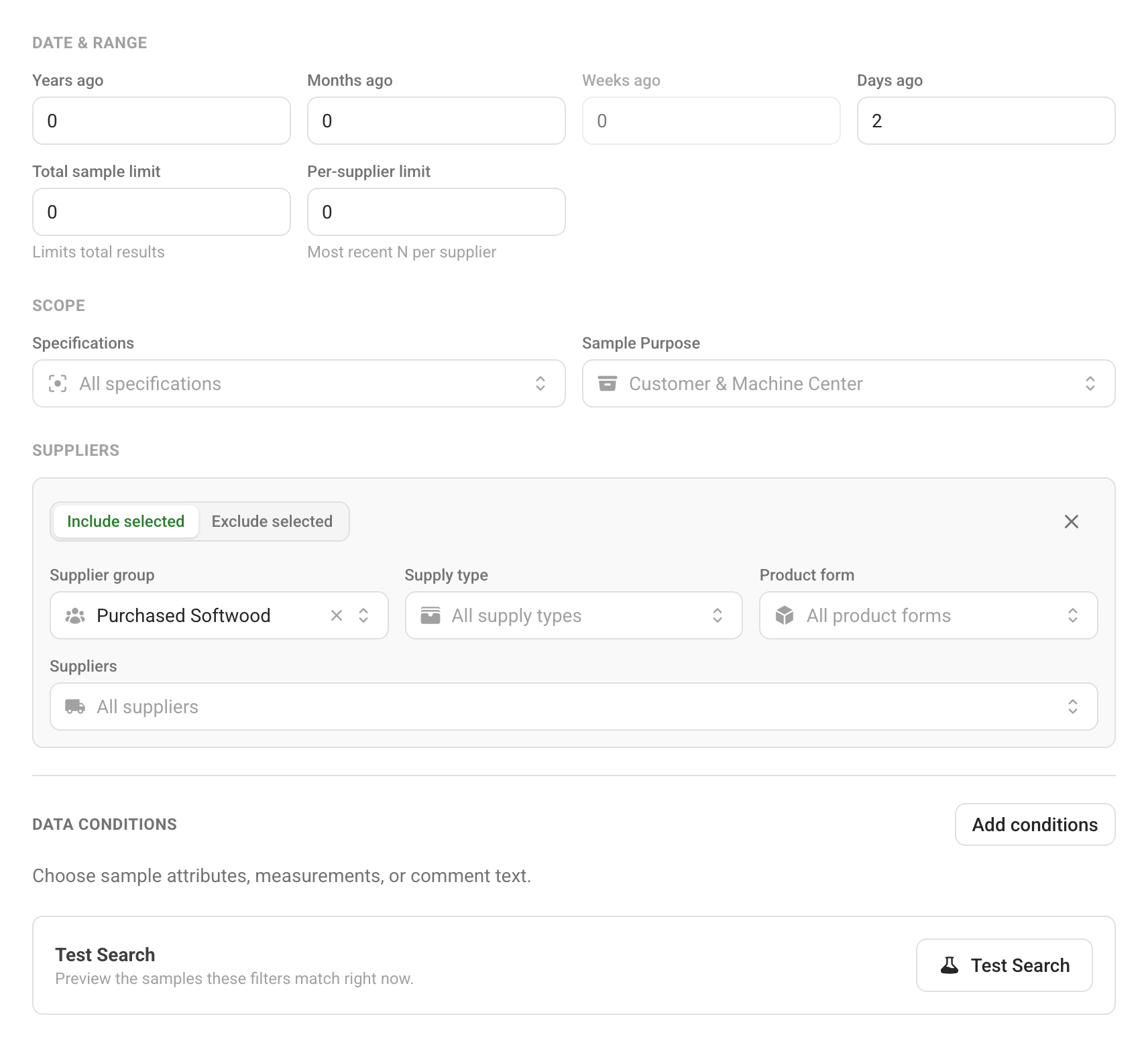
Alarms & Notifications uses the same filters. An alarm set to a group watches that group's samples over a rolling window, checks its condition on a schedule, and emails its recipients when the alarm changes state. One alarm then covers the suppliers in the group.
At mills with the corrective-action module, a CAPA workflow can watch a supplier group as one of its targets; see Corrective and preventive action (CAPA).
Who can use it
Mill users who can see the mill's suppliers can open the Groups tab and use any group as a filter. A supplier login can view a group, read-only, if it has at least one member and the login has access to every member. The Groups tab and the Supplier group filter appear for that login only if at least one group qualifies. Creating, changing and deleting groups is done by the mill: it needs mill-wide access as an account Owner or Admin, or the Suppliers permission at Contributor or above. Creating an alarm takes mill-wide Chip Data at Manager or above.
Read next
- Supplier management — the supplier records groups are made from.
- Finding samples — the filters a group plugs into.
- Corrective and preventive action (CAPA)
- Supplier logins