Corrective and preventive action (CAPA) for chip quality
A bad load is easy to spot. What is hard is making sure somebody follows it up: that the supplier is told, that the next samples are watched, and that six months later you can show what happened and when. Usually that lives in someone's inbox and someone else's memory.
Corrective / Preventive Action (CAPA) in The Chip Lab turns that follow-up into a tracked incident. With a typical workflow, when a supplier's chip quality drops below the line your mill has set, an incident opens by itself, the person responsible for that supplier is told, each step is recorded as it happens, and the incident closes when the supplier's quality recovers.
CAPA is an optional module. It is available to mills that have it switched on; if yours does not, the menu section and dashboard panel described here do not appear.
How an incident runs
Each kind of follow-up is a workflow: what opens an incident, the steps it moves through, and what closes it. A typical one watches a supplier's samples, opens an incident when a sample falls below the minimum, waits at a correction step, and closes once the supplier's next sample is back at target.
The workflow watches the suppliers you point it at, one by one or as a supplier group, and each of those has one or more process owners: the people at your mill who answer for that supplier's chips. A process owner can be emailed when an incident opens and when it closes, and reminded on a schedule while it is still open.
Nobody has to create the incident or remember to close it. New samples move it along, and a recovered sample ends it.
Incident Management
Open Corrective / Preventive Action in the menu and choose Incident Management. Each row shows the workflow, the supplier and specification, whether the incident is Open or Closed, a step-by-step progress bar, and the process owner. An open incident shows the step it is waiting on; a closed one shows its final step's completed label, or Closed if it ended part-way. The list starts on Open Incidents; switch it to Closed Incidents or All Incidents to look back.
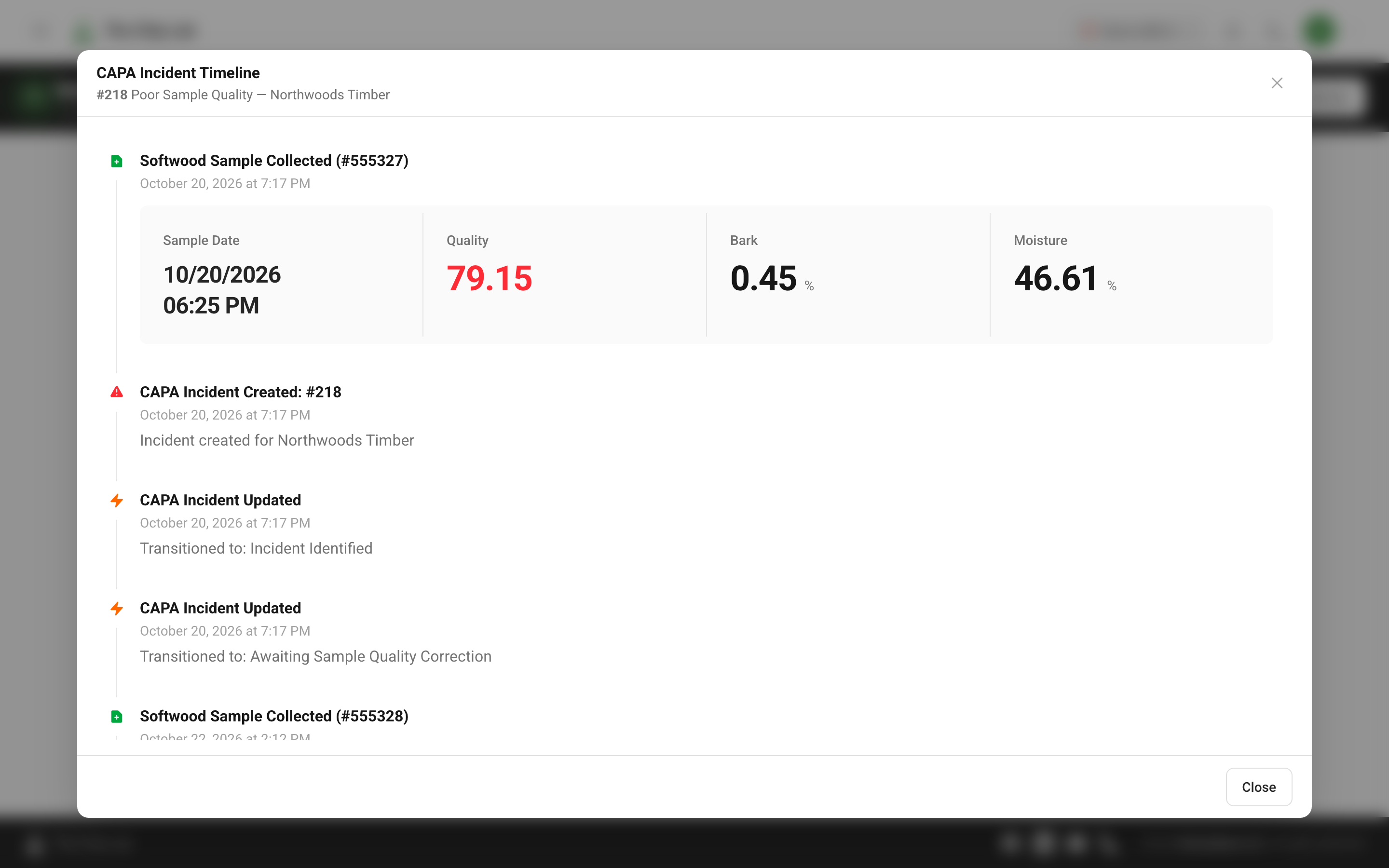
Click the incident to see its details: what raised it, who owns it, the current step (the Final Step once it has closed) and when it last moved.
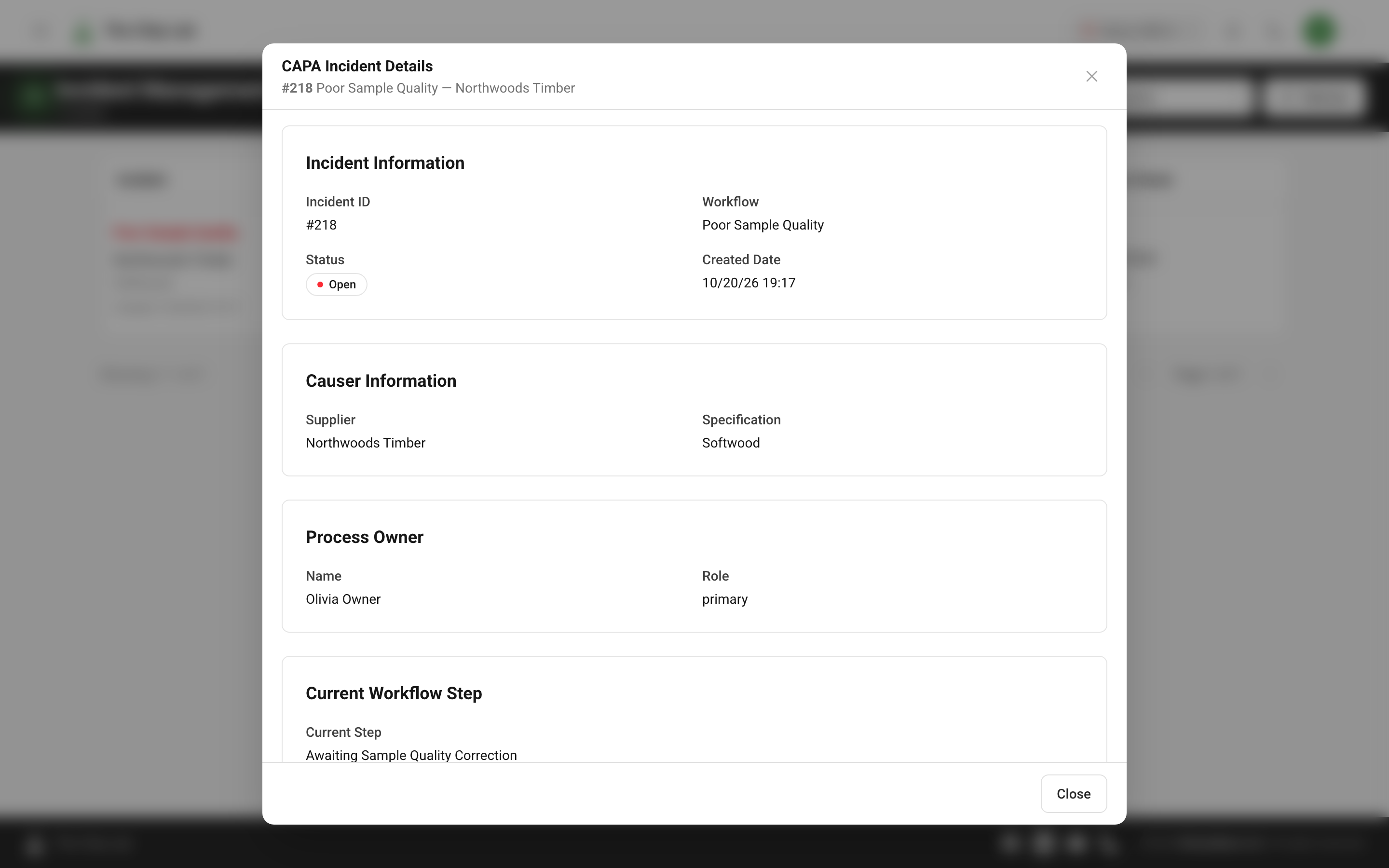
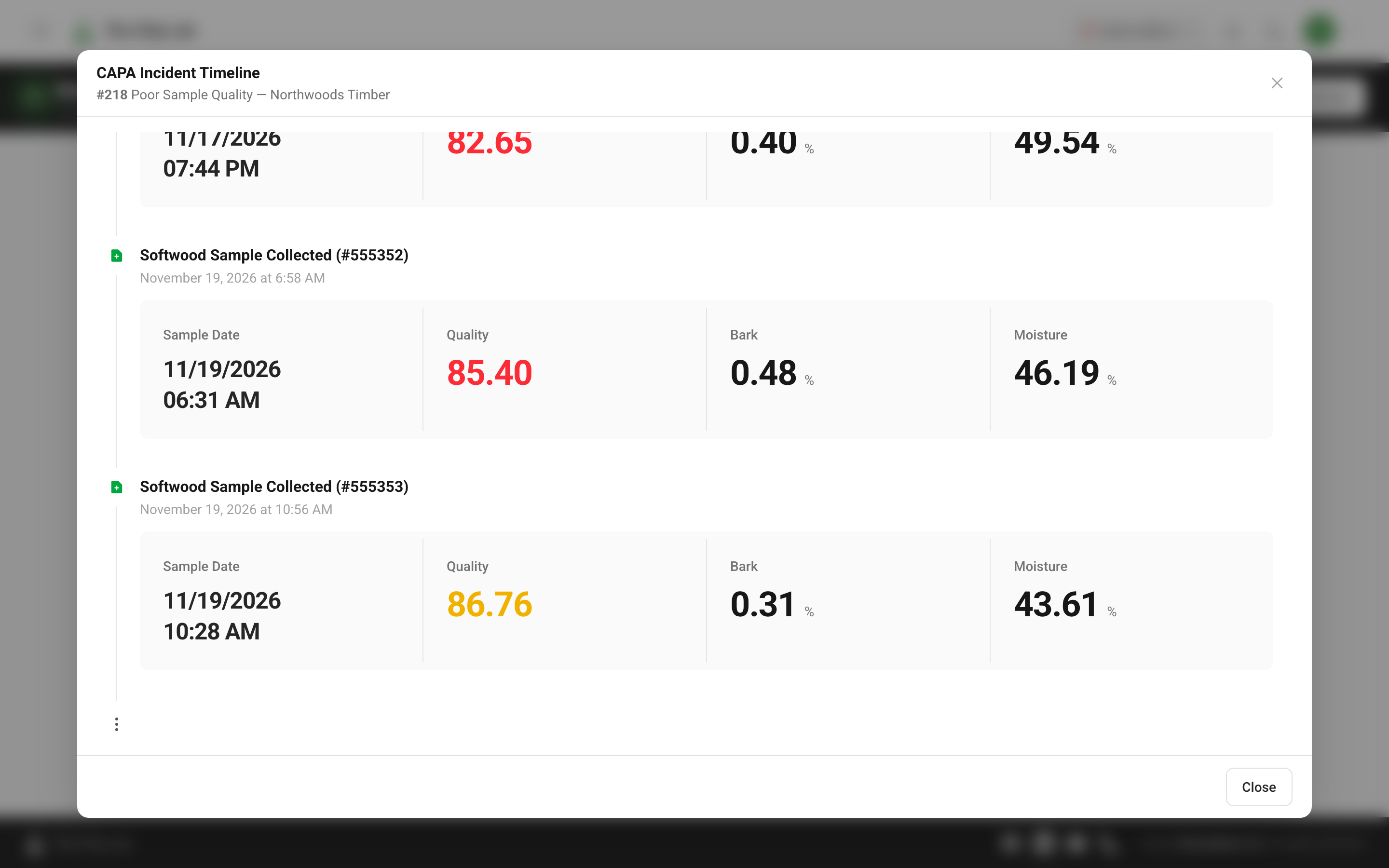
Click the progress bar to open the incident's timeline. It reads like a logbook: the sample that tripped the incident with its results, the moment the incident opened, every step it has moved through, and each of the supplier's samples since, each with its date and time.
On the dashboard
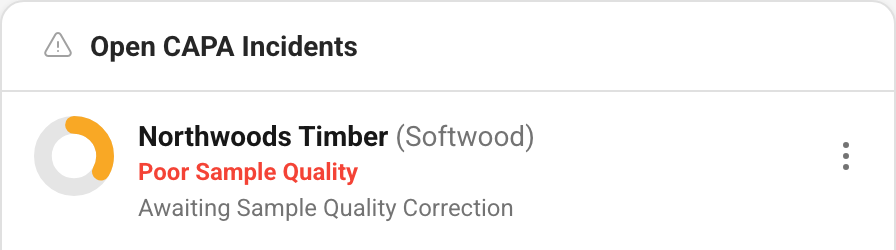
The dashboard can carry an Open CAPA Incidents panel, so open incidents sit next to the rest of the day's quality picture. Each entry shows the supplier, the workflow, the step it is waiting on, and a ring for how far through the workflow it is. Its menu offers View Workflow, View Timeline and Enter CAPA Event, which records what your team did about that incident as an event linked to it, so the action becomes part of the incident's record.
Workflow Management
Workflow Management, in the same menu section, lists your mill's workflows as cards: what each one is for, whether it is Active, and how many steps, monitors and targets it has.
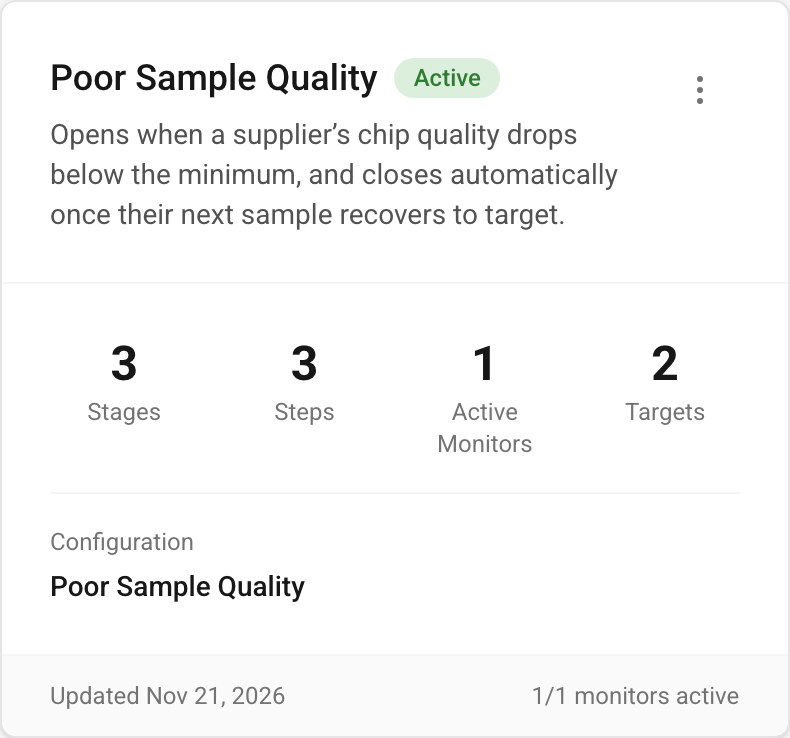
From a card's menu, View Steps shows the steps in order and Manage Targets shows which suppliers or supplier groups the workflow watches and who their process owners are.
Who can do what
- Seeing incidents and workflows needs the CAPA permission at Viewer, Reviewer, Editor, Manager or Admin. Contributor-level access does not include it.
- Running CAPA at your mill (editing a workflow's details, switching it on or off, and choosing which suppliers it watches and who owns them) needs CAPA at Manager or above.
- Designing a workflow (creating one, changing its steps and the rules that open and close incidents) is set up with The Chip Lab team, so the rules match how your mill already handles supplier quality.
Read next
- Log maintenance and supplier events beside your chip data
- Supplier groups
- Process behavior charts — tell a real shift from ordinary variation.
- Ask the supplier: let suppliers complete their own profile, so the person you call about a quality incident is already on file.