What's new in The Chip Lab in 2026
The rebuilt web app: version 3
On 22 July 2026 The Chip Lab moved to its rebuilt web app, version 3. Every screen shares one design, with a light and a dark theme. Links go straight to a supplier or a tab. Dashboards can rotate through several pages on a screen in the lab, mills with the Knowledge Base read it inside the app, and when a new version is out the app offers an Update now prompt so you can move to it straight away.
The list below starts with that launch and follows the releases since, newest first.
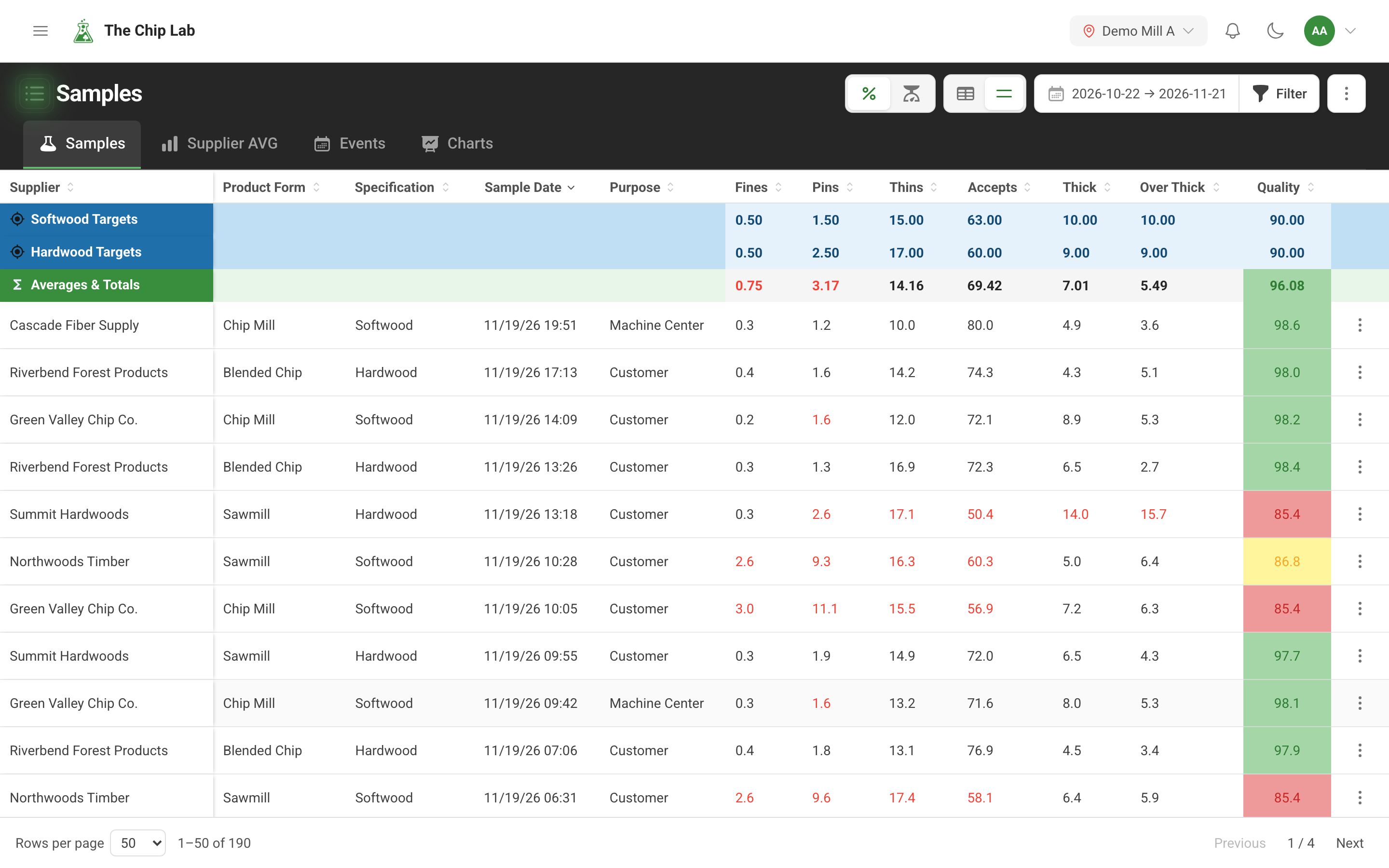
Newest first. Version numbers are shown as light markers; you never need them to use a feature. Where a feature has its own article, the entry links to it. Corrective actions (CAPA) and the Knowledge Base are optional modules, so their entries apply to mills that have them.
November 2026
- Uploads are checked for viruses (3.31). Every new file — on a supplier, a piece of equipment, an event, a Knowledge Base article or a returned profile scan — is checked for viruses. It reads Scanning… while the check runs, and a file found to carry a threat is blocked for good. Since 3.29, upload windows list the kinds of file they accept, and a refused file is named with the reason.
- Questionnaires (3.29–3.30). When The Chip Lab team sends your mill a questionnaire, the people it is addressed to answer it in the app, one question at a time, with drafts saved as they type. Questions waiting on you appear at the top of the dashboard, newest first, and can be answered right there; a questionnaire can carry an Answer by date, which colors each sender's count by how close it is. Questionnaires
- Your entries, and who changes a sample (3.28). Below the Manual Sample Entry form, Your entries lists the last samples you entered, with their status; View more opens them on the Samples page. Who can change a saved sample follows the person's Chip Data level: Editors and above edit and hold, Reviewers approve and release, and Contributors enter samples without changing them afterwards. A login set up for a supplier changes only its own entries (at Manager, any sample of that supplier) and never approves. Each level in Users & Permissions now says in one line what it allows. Sample review and approval · Manual sample entry · Users and permissions
- On hold and Entered by (3.28). The Samples page's data conditions gained On hold, to include held samples or show only them, and Entered by, to find the manual entries a particular person made. A held sample is marked in the grid. Finding samples
- Quality numbers you can act on (3.27). A supplier's quality trend arrow points up when its quality is rising over the window and down when it is falling. Quality Alerts lists each supplier whose average over the window rates ok or poor, with the mill's minimum sample count applied where one is set, and the dashboard's alerts tile shows the number of alerts; the worst-suppliers list ranks suppliers by their average over the window. The Quality Overview's specification average averages the same samples its supplier rows are built from. Quality Overview and Quality Alerts
- Trend in the sample window (3.26). Opening a supplier's average from the dashboard or from Quality Alerts now offers a Distribution / Trend switch: Trend plots each sample behind the average over time, against target. The dashboard's quality trend shows an arrow on each specification tab. Sample trends · Mill dashboards
- A board that fits each person's access (3.25). Someone who enters samples but does not read the mill's sample results gets a Sample Entry tile in place of the sample tiles, and only the screens and widgets they can use. Mill dashboards
- Compare a sample with its own spec target (3.24). In Sample Filters → Data conditions, a rule can compare each sample with the target of its own specification, plus or minus an offset, instead of a fixed number. A saved filter, report or alarm written as "above target" follows the target as it changes. Finding samples
- Combined fractions (3.21–3.23). Tick several fractions and filter on their total. The total then appears as its own Σ column in the sample tables and in spreadsheet exports, rated against the summed target of each sample's specification. Finding samples
- All / Any groups in data conditions (3.21). The rule list can match All or Any, and Add group nests a second set of rules with its own All / Any — so a filter can say "this, and either of those two". Finding samples
- More samples than loads (3.22). The Sampling tab on the Suppliers page now flags any supplier with more samples than delivered loads in the period, at mills whose loads arrive in a daily feed, as a prompt to check whether samples or loads are filed under the wrong supplier record. Supplier sampling and data integrity
October 2026
- Filter samples by what they measured (3.20). Sample Filters gained Data conditions: rules on any measured value, on comment text, and on scores, including your calculated values. Sample sources and types can be multi-selected. Data conditions work in sample tables, averages, reports, alarms and dashboard widgets, and a shared link carries them. Late October added Is missing and Has a value, for finding samples where a test was not recorded. Finding samples
- Mark for validation, and change on approval (3.19). In Review Pending Samples, a reviewer can mark samples for validation or set a different value to apply when the sample is approved. The table shows the original struck through beside the value that will apply, and the change is kept in the sample's history. Looking a sample up by its sample or test ID finds it whatever date range or other filters are set. Sample review and approval
- Deactivated suppliers stand out (3.18). A deactivated supplier is marked Deactivated wherever it is still selected, and the group editor names a deactivated member together with its replacement, with buttons to add the one and remove the other. For mills with corrective actions, incidents stored under a different or deactivated supplier are tagged, and a deactivated supplier finishes its open corrective actions but starts no new ones. Supplier management · Corrective actions
September 2026
- Ask the supplier (3.17). Send a supplier a private link or a printed form for the parts of their profile you are missing — contacts, woodyard, equipment and more. What comes back lands in a review queue at your mill, shown beside what is on file, and nothing changes until a reviewer publishes it. Printed forms can be faxed from the app, and returned paper is uploaded as a scan. Ask the supplier
- Recoverable Fiber — preview (3.15). Performance & Quality → Recoverable Fiber follows every delivered ton and shows where recoverable fiber is lost on its way to the digester, by specification, in tons — and in dollars for account owners and admins with access to financial data. Each supplier record has a matching Recoverable Fiber tab.
- Process Map — preview (3.15). Management → Process Map lays out your mill's process by species line, with the points where samples are taken. Anyone who can read the mill's samples can open it; the map itself is set up with The Chip Lab team.
August 2026
- Contracts on the supplier record (3.14). A Contracts tab lists the supplier's contracts and their deliveries for people with access to financial data. Reassign moves a contract that was filed under the wrong supplier — and its deliveries with it — after a preview of what will change. Supplier sampling and data integrity
- Deliveries waiting to convert (3.13). The Deliveries tab on the Suppliers page, for people with access to financial data, has two modes: Uploads, for upload activity over a chosen window, and Unconverted, for everything still waiting to convert across the mill and every period. Supplier management
- Supplier Score Card (3.12). A dashboard widget that ranks suppliers against target, with a trend arrow and delivered tonnage, a supplier data table, and the individual samples behind each row. Dashboards are composed for your mill with The Chip Lab team, and a dashboard page can now be limited to the people it is meant for. Dashboards
- Dashboard pages by name (3.12). Multi-page dashboards show a named page switcher, and dashboard charts open full screen (3.9). Mill dashboards
- Deactivating a supplier (3.10). Deactivating asks for confirmation, retires the supplier's cross references with it, and the record shows Inactive with the date. Its history is kept, and newly uploaded samples stop arriving on it. Supplier management
- Scheduled reports on your mill's clock (3.9). Reporting → Schedule has a New schedule wizard: pick the report, how often and at what time on the mill's clock, and see exactly who will receive it before saving. Schedules follow daylight saving, and each can be paused, run now or set to a dry run. Scheduled reports
- Ratings for calculated values (3.7). Calculated values are rated against target and tinted like measured ones on every screen, and quality alerts can follow the measure your mill rates by, set with The Chip Lab team. Quality overview and alerts
- Supplier setup and the supplier map (3.5). The supplier editor now walks the profile step by step — Identity, Supply Path, Contacts, Woodyard, Equipment, and Spec & Automation — with a Profile strength meter that shows what is still missing, and a way to record that a supplier has no debarker, screen or resizer on site. The Suppliers page switches between Grid and Map, with supplier pins, a delivered-tonnage heat view and supplier flows. Suppliers gained a contact roster, a manual location pin, a drawn lot boundary and a Deliveries tab. Supplier management
July 2026
- The rebuilt web app (3.0, 22 July). Every screen of The Chip Lab was rebuilt on one design: a light and dark theme, links that go straight to a supplier or a tab, dashboards that can rotate through several pages on a screen in the lab, and clear pages for a broken link or a screen you do not have access to. Mills with the Knowledge Base read it inside the app. Knowledge Base
- Update now (3.0). When a new version is out, the app offers an Update now prompt, so you can move to it straight away. Installing on Android · Installing on iOS
- Notification bell (3.1). Notices reach you in the app as well as by email. Your account · Alarms and notifications
- Email you can manage (3.1). Every informational email carries its own unsubscribe link; reports, quality alerts and corrective-action notices are never affected by it. On Users & Permissions, each person's Email delivery panel shows what they have unsubscribed from and whether mail to their address is being returned, and report recipient lists flag addresses that keep failing temporarily. Automatic email feedback handling